> ## Documentation Index
> Fetch the complete documentation index at: https://ai-docs.myidfi.com/llms.txt
> Use this file to discover all available pages before exploring further.
# Cal.com
> With the Cal.com integration, you offer customers a seamless experience to book demos or meetings directly from the chat.
Users can schedule calls in just a few steps, without ever leaving the conversation. This frictionless flow not only improves the customer experience but also increases the chances of demo bookings through a faster, more efficient process.
## How to Enable Cal.com Integration
Go to your **Chat Agents** dashboard.
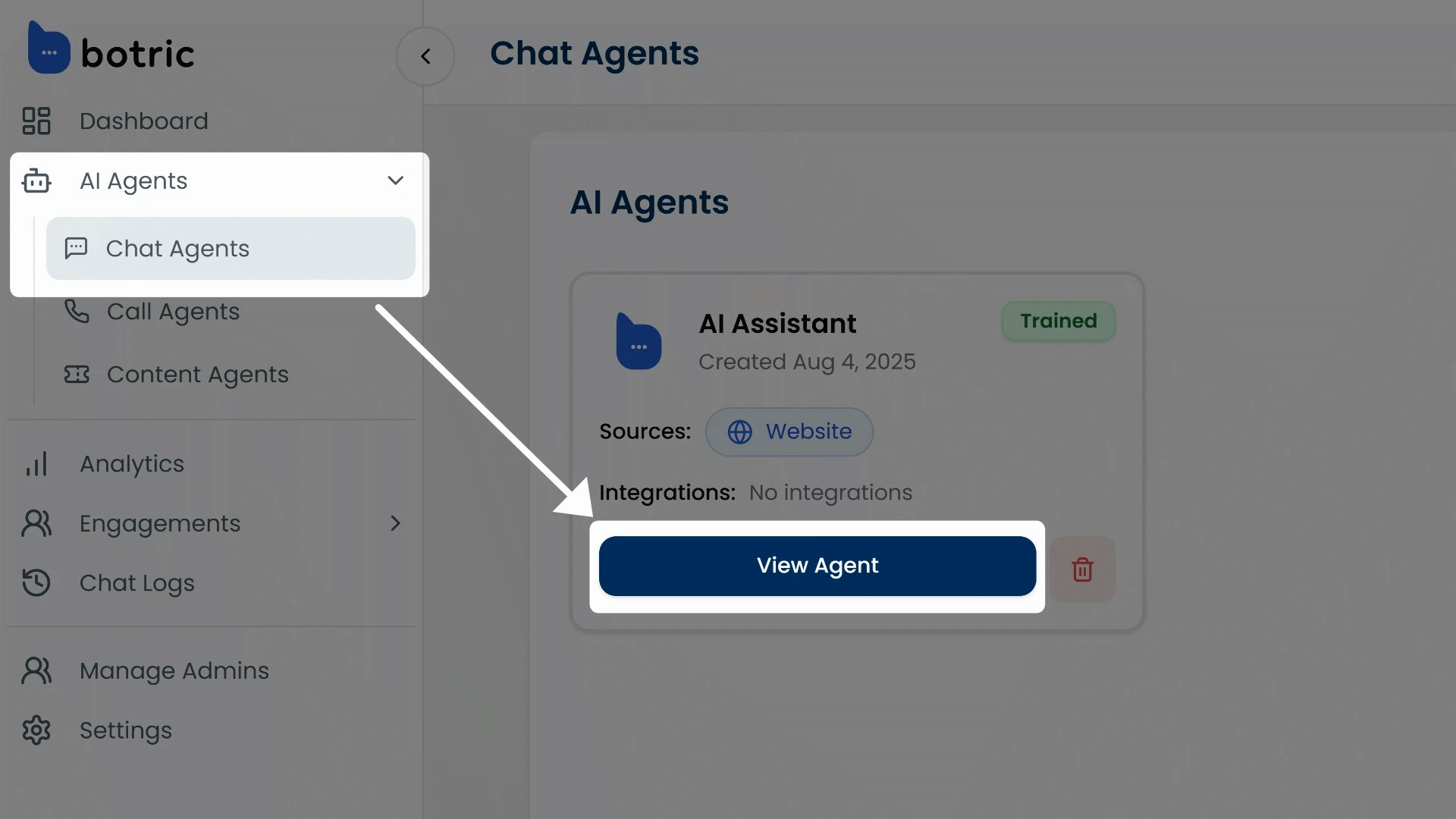 Click “**View Agent**” under the agent you want to connect integrations with. This opens the agent’s settings page, starting with the Appearance tab.
Switch to the **Integrations** tab in the top navigation.
Click “**View Agent**” under the agent you want to connect integrations with. This opens the agent’s settings page, starting with the Appearance tab.
Switch to the **Integrations** tab in the top navigation.
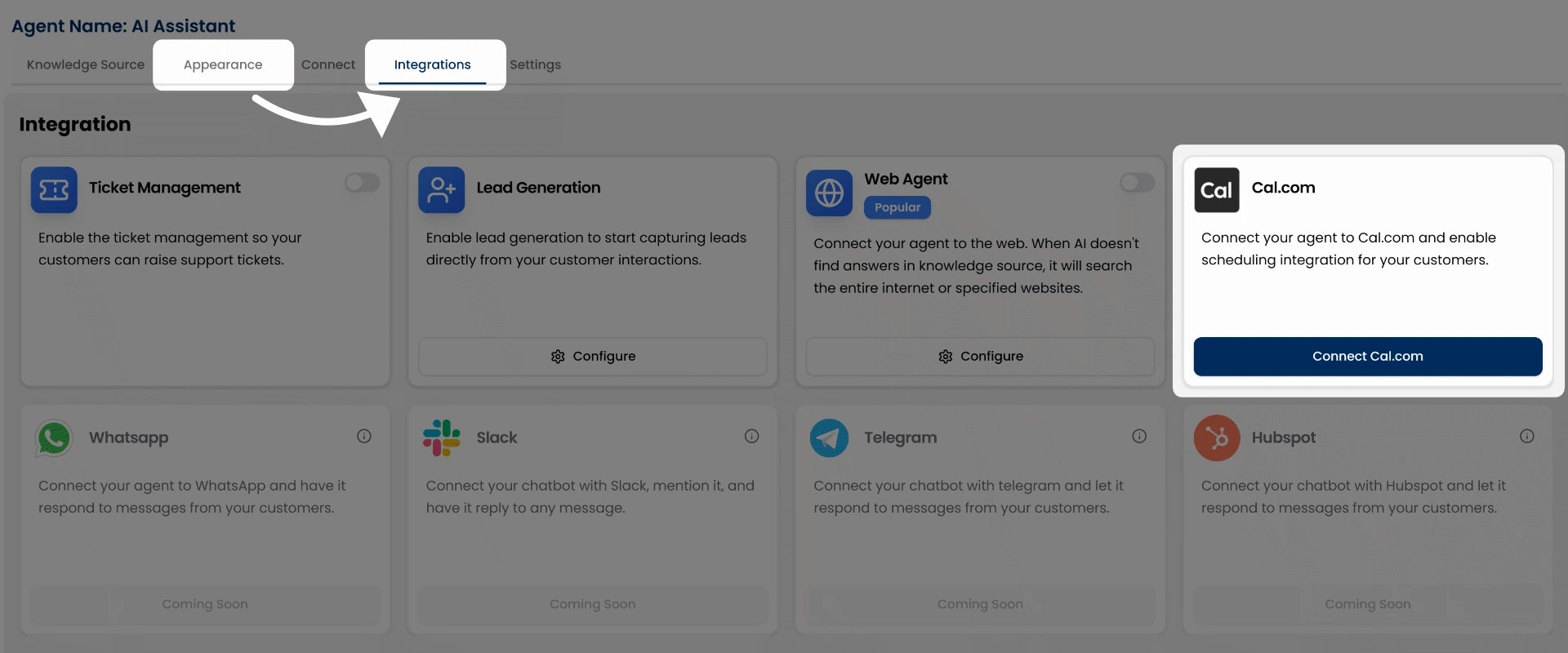 You’ll see a **Connect Cal.com** button. Click it to add your Cal.com event URL and complete the connection.
## How to Connect Your Event URL
To connect your booking link:
Click the **Connect Cal.com** button.
You’ll see a **Connect Cal.com** button. Click it to add your Cal.com event URL and complete the connection.
## How to Connect Your Event URL
To connect your booking link:
Click the **Connect Cal.com** button.
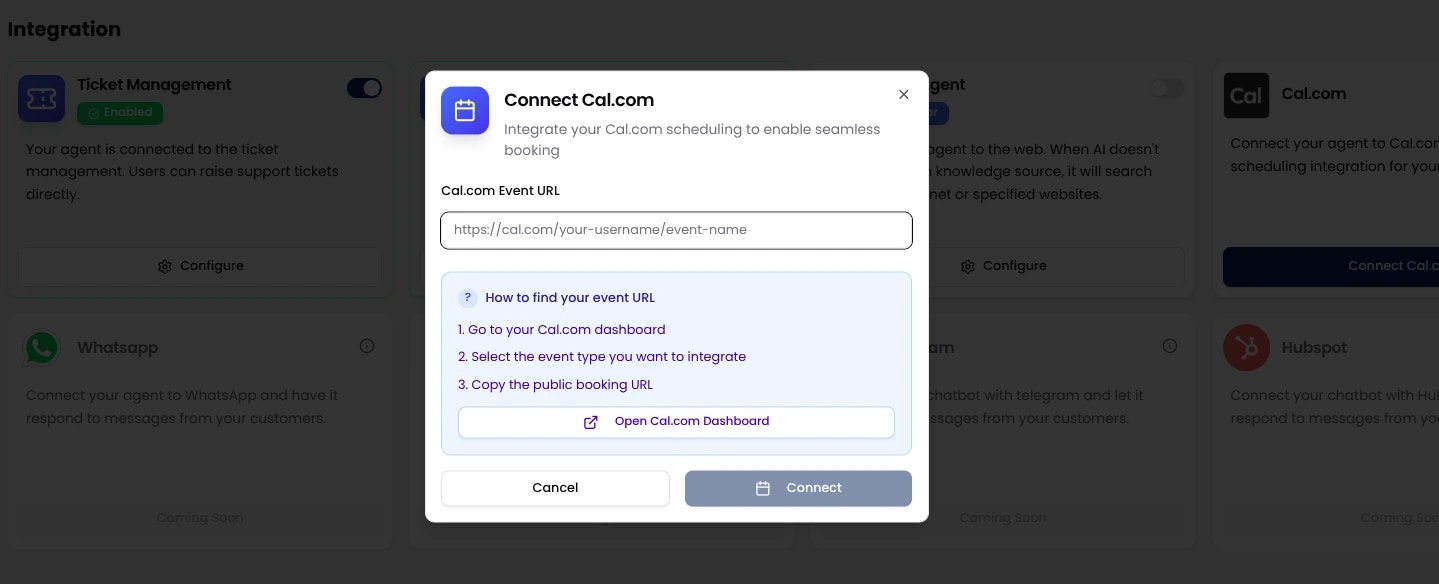 Paste your Cal.com booking URL in the input field.
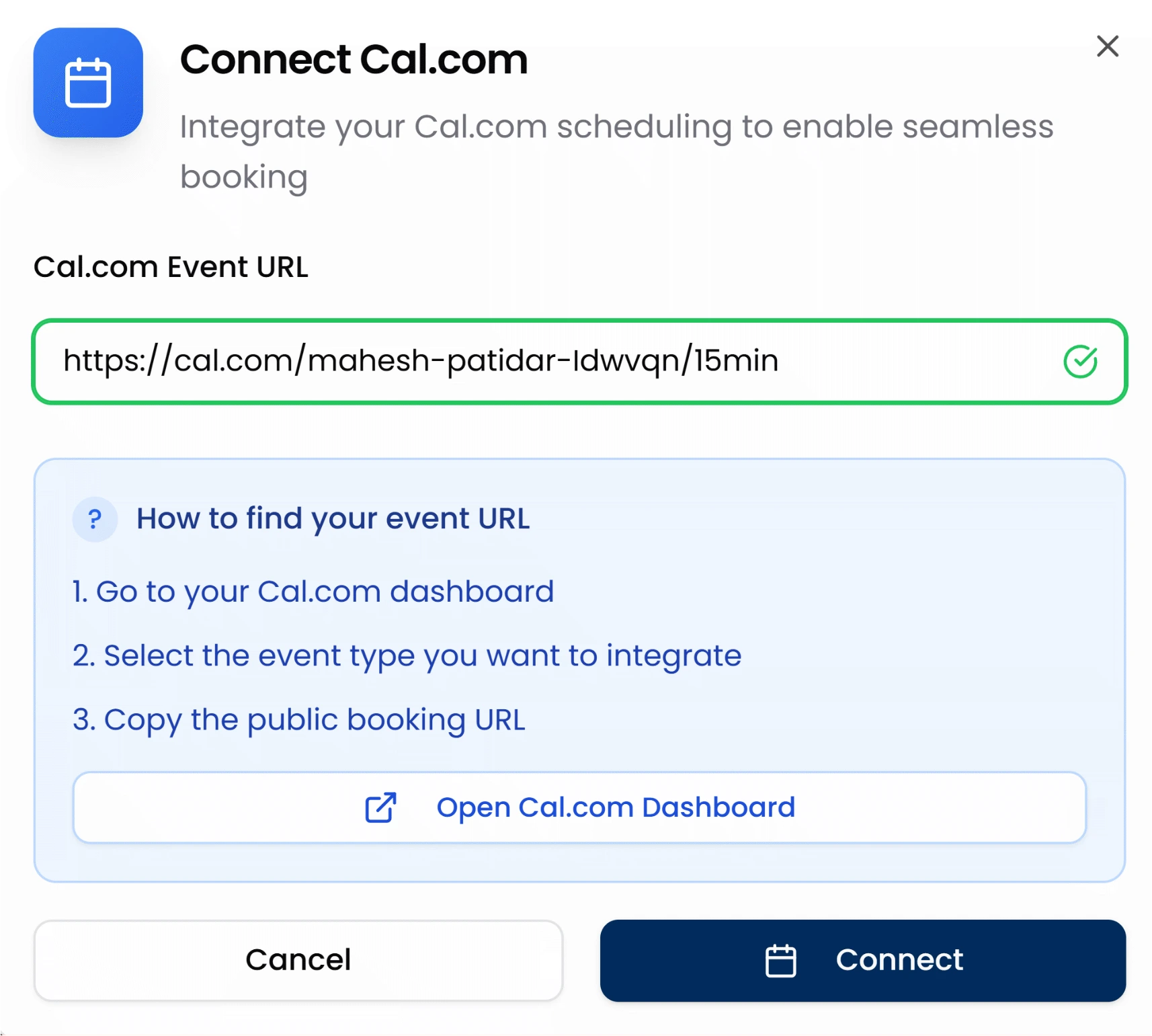 You’ll see a field where you can enter your personal or team Cal.com booking link for example:`https://cal.com/yourname/demo-call`
Click **Connect** to link your Cal.com account with the AI agent.
You’ll see a field where you can enter your personal or team Cal.com booking link for example:`https://cal.com/yourname/demo-call`
Click **Connect** to link your Cal.com account with the AI agent.
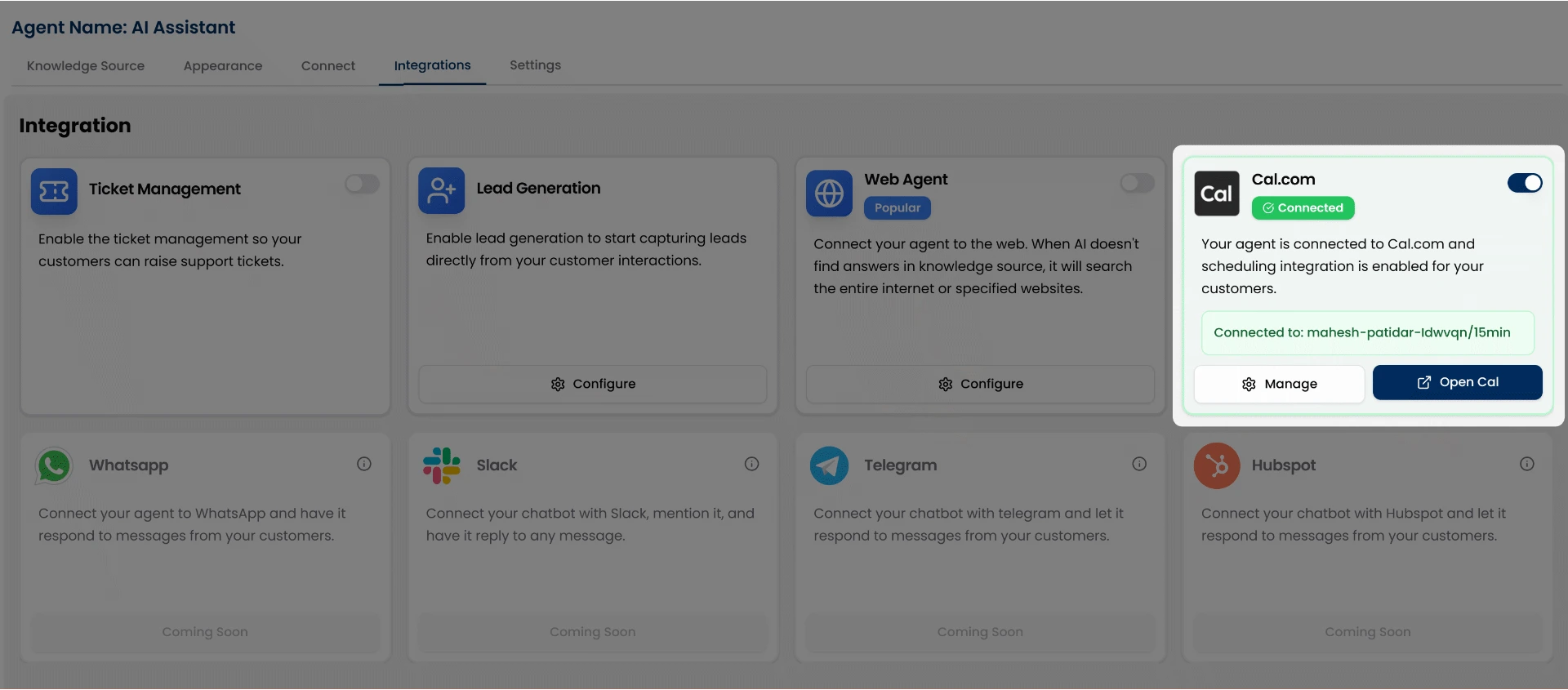 Your AI agent is now ready to offer meeting bookings directly from the chat.
You can create or manage your Cal.com booking links from your Cal.com dashboard.
### Where to Find Your Cal.com Event URL
1. Log in to your [Cal.com](https://cal.com) dashboard.
2. Go to the **Events** section and select the event you want users to book.
3. Copy the **public event URL** (e.g., [https://cal.com/yourname/meeting](https://cal.com/yourname/meeting)).
4. Paste this into the myIDFI AI integration input field and click Connect.
## Preview in Chat
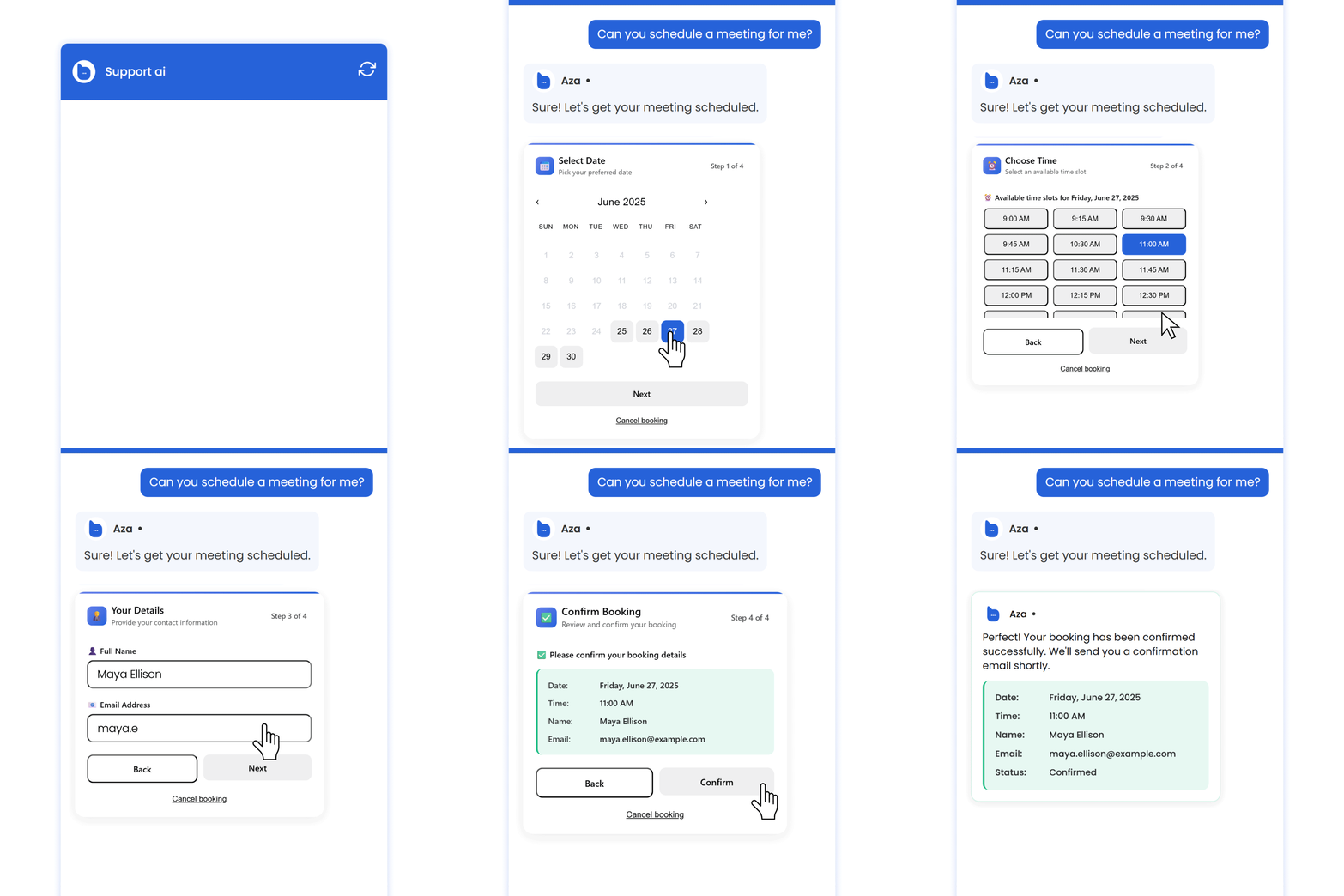
Once your Cal.com URL is connected, your AI Agent will automatically detect user intent to schedule a call or meeting.
For example, if a user types:
* “Can I book a demo?”
* “I want to schedule a call”
* “Need to speak with your team”
The agent will respond with a button like **Book a Call**.
When clicked, it opens the Cal.com booking interface right inside the chat.
This creates a smooth and frictionless booking experience for your customers and helps you convert conversations into real meetings effortlessly.
See how users can book a meeting in the demo video below.
Your AI agent is now ready to offer meeting bookings directly from the chat.
You can create or manage your Cal.com booking links from your Cal.com dashboard.
### Where to Find Your Cal.com Event URL
1. Log in to your [Cal.com](https://cal.com) dashboard.
2. Go to the **Events** section and select the event you want users to book.
3. Copy the **public event URL** (e.g., [https://cal.com/yourname/meeting](https://cal.com/yourname/meeting)).
4. Paste this into the myIDFI AI integration input field and click Connect.
## Preview in Chat
Once your Cal.com URL is connected, your AI Agent will automatically detect user intent to schedule a call or meeting.
For example, if a user types:
* “Can I book a demo?”
* “I want to schedule a call”
* “Need to speak with your team”
The agent will respond with a button like **Book a Call**.
When clicked, it opens the Cal.com booking interface right inside the chat.
This creates a smooth and frictionless booking experience for your customers and helps you convert conversations into real meetings effortlessly.
See how users can book a meeting in the demo video below.
 ## Where the bookings go
All meetings scheduled through the chat agent are visible in your myIDFI AI dashboard under the **Scheduled Calls** section on the left sidebar.
You can track and manage all upcoming bookings from there. Each event is also synced with your connected Cal.com account, so everything stays up to date automatically.
For a better understanding of how to view and manage scheduled calls, check out the Scheduled Calls section of the documentation.
## Where the bookings go
All meetings scheduled through the chat agent are visible in your myIDFI AI dashboard under the **Scheduled Calls** section on the left sidebar.
You can track and manage all upcoming bookings from there. Each event is also synced with your connected Cal.com account, so everything stays up to date automatically.
For a better understanding of how to view and manage scheduled calls, check out the Scheduled Calls section of the documentation.