> ## Documentation Index
> Fetch the complete documentation index at: https://ai-docs.myidfi.com/llms.txt
> Use this file to discover all available pages before exploring further.
# Overview
> myIDFI AI allows you to extend your AI Agent's capabilities by connecting it with powerful third-party tools. These integrations allow your AI Agent to do more than just chat. With just a few clicks, you can connect it to tools that automate support, capture leads, schedule meetings, and more.
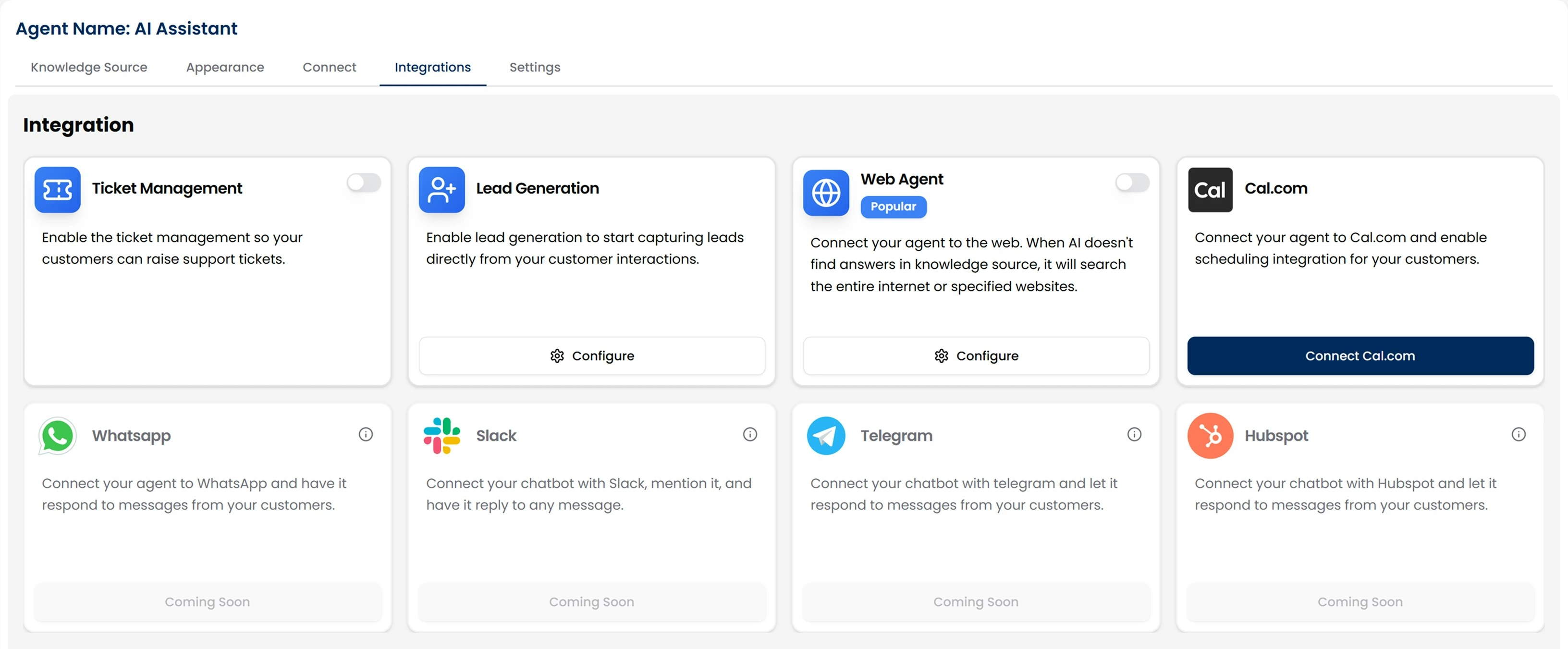 Integrations are modular and optional. You choose which tools to connect, and you can configure each one independently based on your business needs.
## Why Integrate?
Integrations let your AI agent do more than just answer questions; they allow it to take real actions across your existing tools.
Instead of stopping at a response, your agent can:
* Create a support ticket when a user reports an issue.
* Capture lead details when someone shows interest.
* Let customers book meetings, demos, and more.
These actions happen directly inside the conversation, without needing human intervention or switching tools.
### Available Integrations
Here’s what you can connect today:
* **[Ticket Management](/integrations/ticket_management)** → Allows users to log support issues as tickets.
* **[Lead Generation](/integrations/lead_generation)** → Capture contact details and qualify leads instantly.
* **[Cal.com](/integrations/cal)** → Allow users to book meetings directly inside the chat.
* **[Web Agent](/integrations/web_agent)** → Expand your agent's knowledge by letting it search the web.
Click any of the integrations above to learn how to connect and configure each one.
And since they’re built into the myIDFI AI platform, you don’t need to write any code to set them up. Just connect, configure, and you’re live.
## How to Integrate Tools with Your AI Agent
There are two ways you can integrate external tools into your AI Agent:
### Option 1: During Agent Creation
While creating your AI agent, you’ll see a step called **Integrations**.
* From here, toggle on the tools you want to use.
* Customize settings for each integration (e.g., setting a Cal.com link or defining lead fields).
This helps you launch your agent with everything ready to go.
You can skip this step if you’re not ready; it’s always available later.
### Option 2: After Your Agent Is Created
Already created your AI Agent? No problem. You can add or remove integrations at any time.
From the left-hand sidebar in your dashboard, go to **AI Agents → Chat Agents**. You’ll see a list of all the AI agents you’ve created.
Integrations are modular and optional. You choose which tools to connect, and you can configure each one independently based on your business needs.
## Why Integrate?
Integrations let your AI agent do more than just answer questions; they allow it to take real actions across your existing tools.
Instead of stopping at a response, your agent can:
* Create a support ticket when a user reports an issue.
* Capture lead details when someone shows interest.
* Let customers book meetings, demos, and more.
These actions happen directly inside the conversation, without needing human intervention or switching tools.
### Available Integrations
Here’s what you can connect today:
* **[Ticket Management](/integrations/ticket_management)** → Allows users to log support issues as tickets.
* **[Lead Generation](/integrations/lead_generation)** → Capture contact details and qualify leads instantly.
* **[Cal.com](/integrations/cal)** → Allow users to book meetings directly inside the chat.
* **[Web Agent](/integrations/web_agent)** → Expand your agent's knowledge by letting it search the web.
Click any of the integrations above to learn how to connect and configure each one.
And since they’re built into the myIDFI AI platform, you don’t need to write any code to set them up. Just connect, configure, and you’re live.
## How to Integrate Tools with Your AI Agent
There are two ways you can integrate external tools into your AI Agent:
### Option 1: During Agent Creation
While creating your AI agent, you’ll see a step called **Integrations**.
* From here, toggle on the tools you want to use.
* Customize settings for each integration (e.g., setting a Cal.com link or defining lead fields).
This helps you launch your agent with everything ready to go.
You can skip this step if you’re not ready; it’s always available later.
### Option 2: After Your Agent Is Created
Already created your AI Agent? No problem. You can add or remove integrations at any time.
From the left-hand sidebar in your dashboard, go to **AI Agents → Chat Agents**. You’ll see a list of all the AI agents you’ve created.
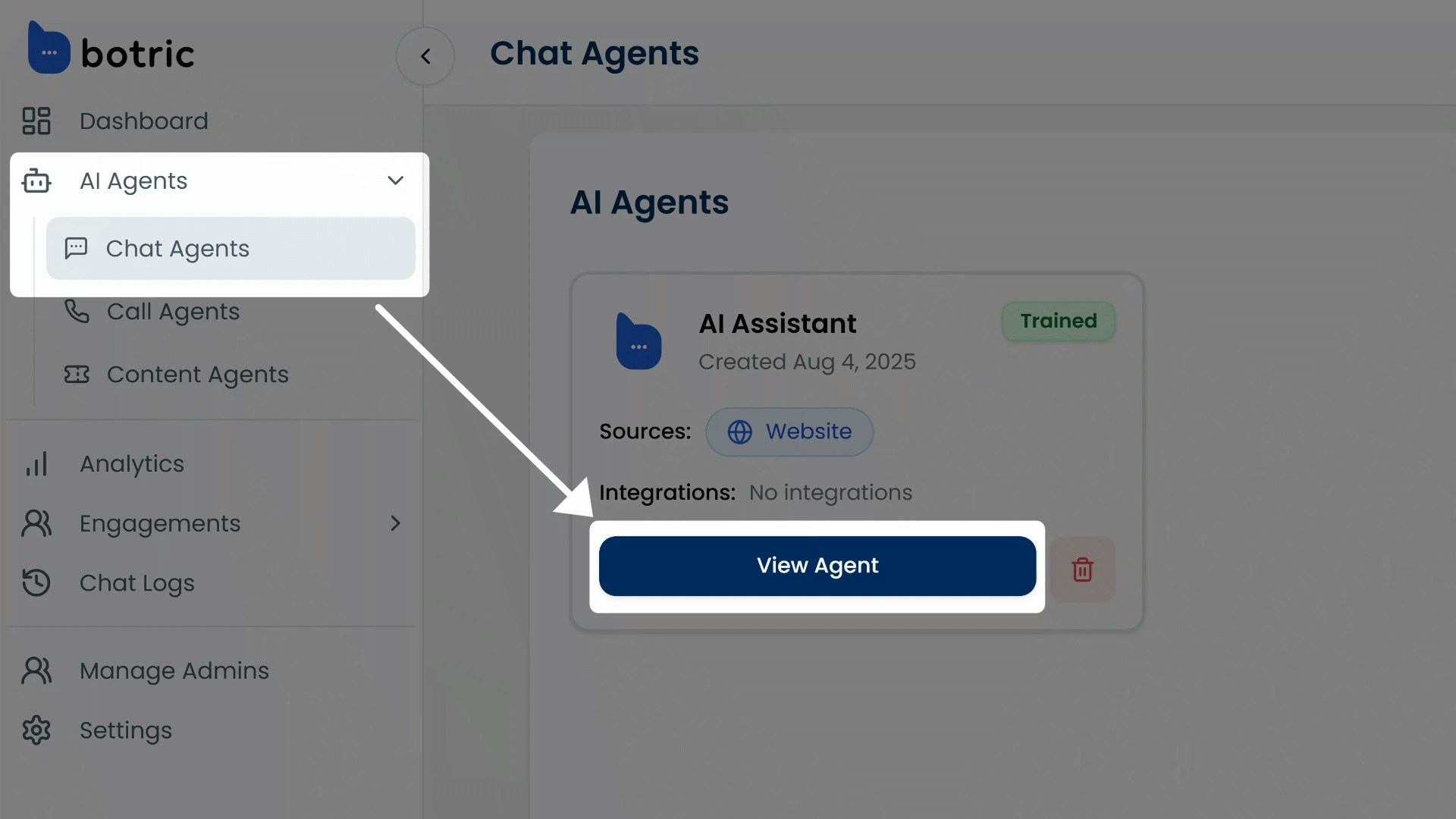 Click “**View Agent**” under the agent you want to connect integrations with. This opens the agent’s settings page, starting with the **Appearance** tab.
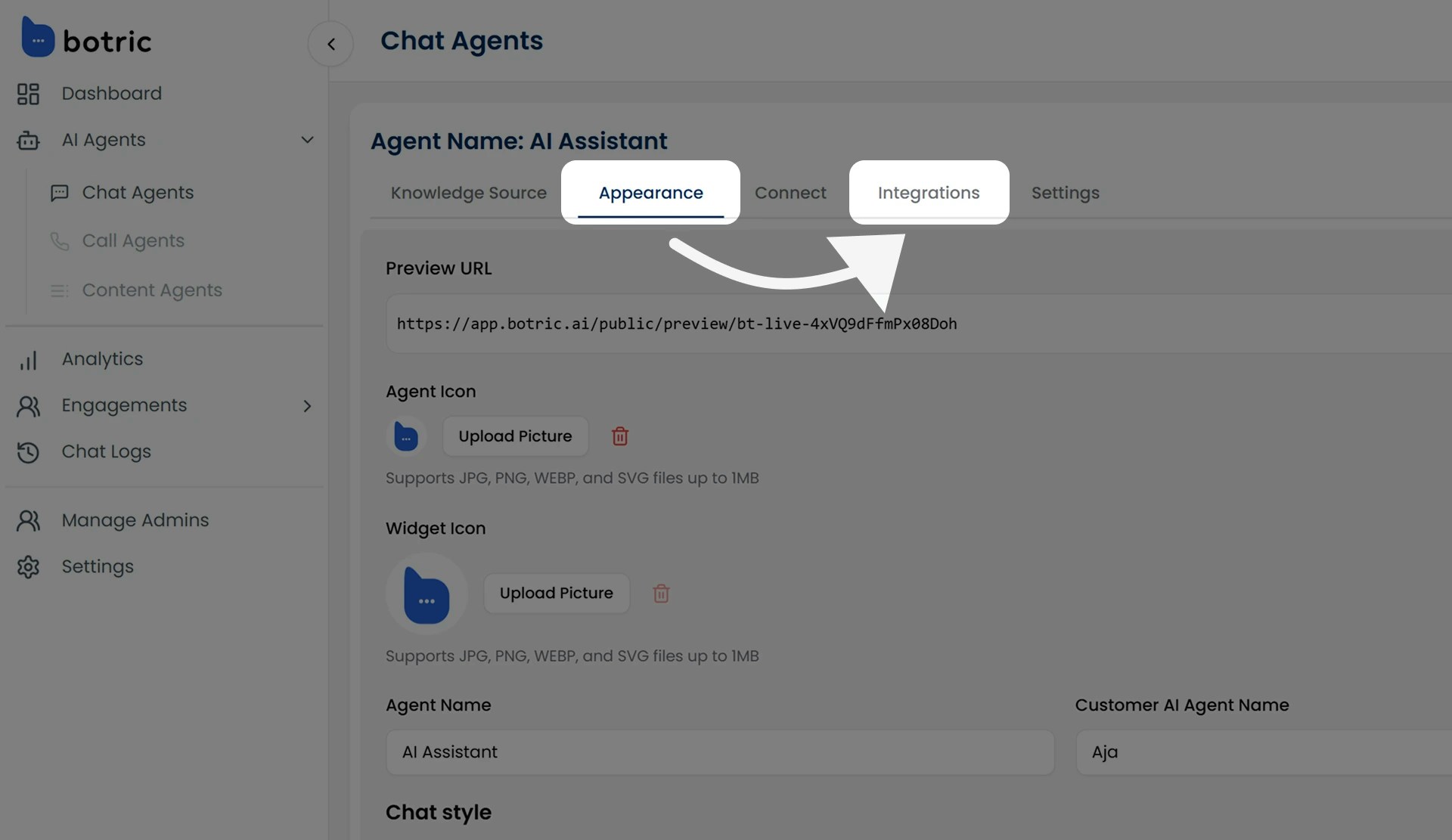 Switch to the **Integrations** tab in the top navigation.
From here, you can:
* Turn individual integrations **ON or OFF**.
* **Configure** tools like Lead Generation, Cal.com, or Ticket Management.
* **Add new integrations** as needed.
* Remove or edit existing ones anytime.
Changes are applied instantly, no redeployment needed. This makes it easy to update your agent as your workflows evolve.
Switch to the **Integrations** tab in the top navigation.
From here, you can:
* Turn individual integrations **ON or OFF**.
* **Configure** tools like Lead Generation, Cal.com, or Ticket Management.
* **Add new integrations** as needed.
* Remove or edit existing ones anytime.
Changes are applied instantly, no redeployment needed. This makes it easy to update your agent as your workflows evolve.