> ## Documentation Index
> Fetch the complete documentation index at: https://ai-docs.myidfi.com/llms.txt
> Use this file to discover all available pages before exploring further.
# Ticket Management
> Let users raise support tickets directly inside the chat.
With the Ticket Management integration enabled, your AI Agent understands when customers need help or support and instantly provides a way to raise a ticket.
When users ask for assistance, the agent displays a simple form where they can enter their name, email, and issue details, and then submit it as a support ticket immediately.
## How to Enable Ticket Management
We made the process of enabling ticket management quite simple. All you need to do is go to your **AI Agents → Chat Agents** dashboard and click **View Agent** on the agent you’d like to update.
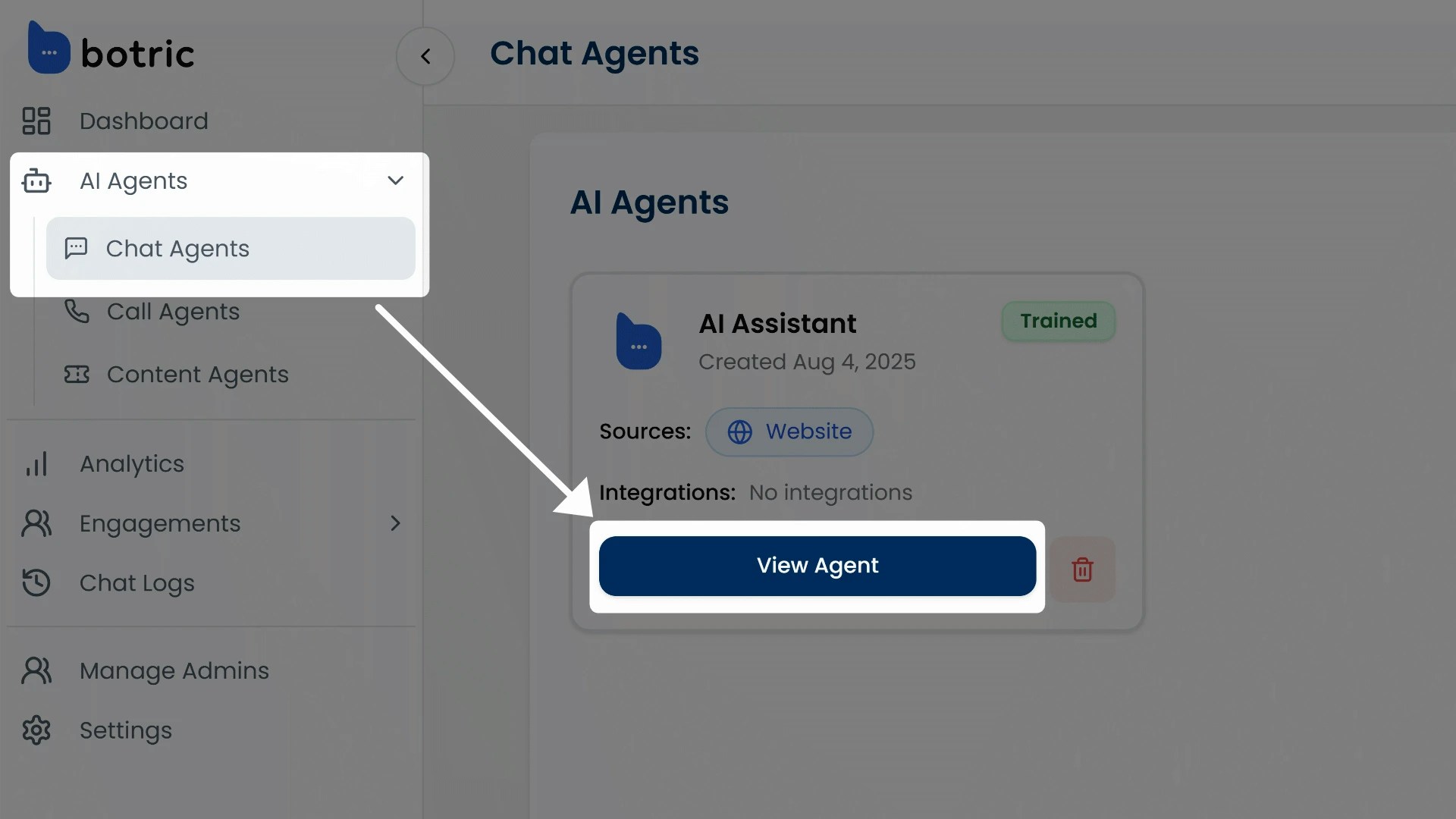 Click “**View Agent**” under the agent you want to connect integrations with. This opens the agent’s settings page, starting with the Appearance tab.
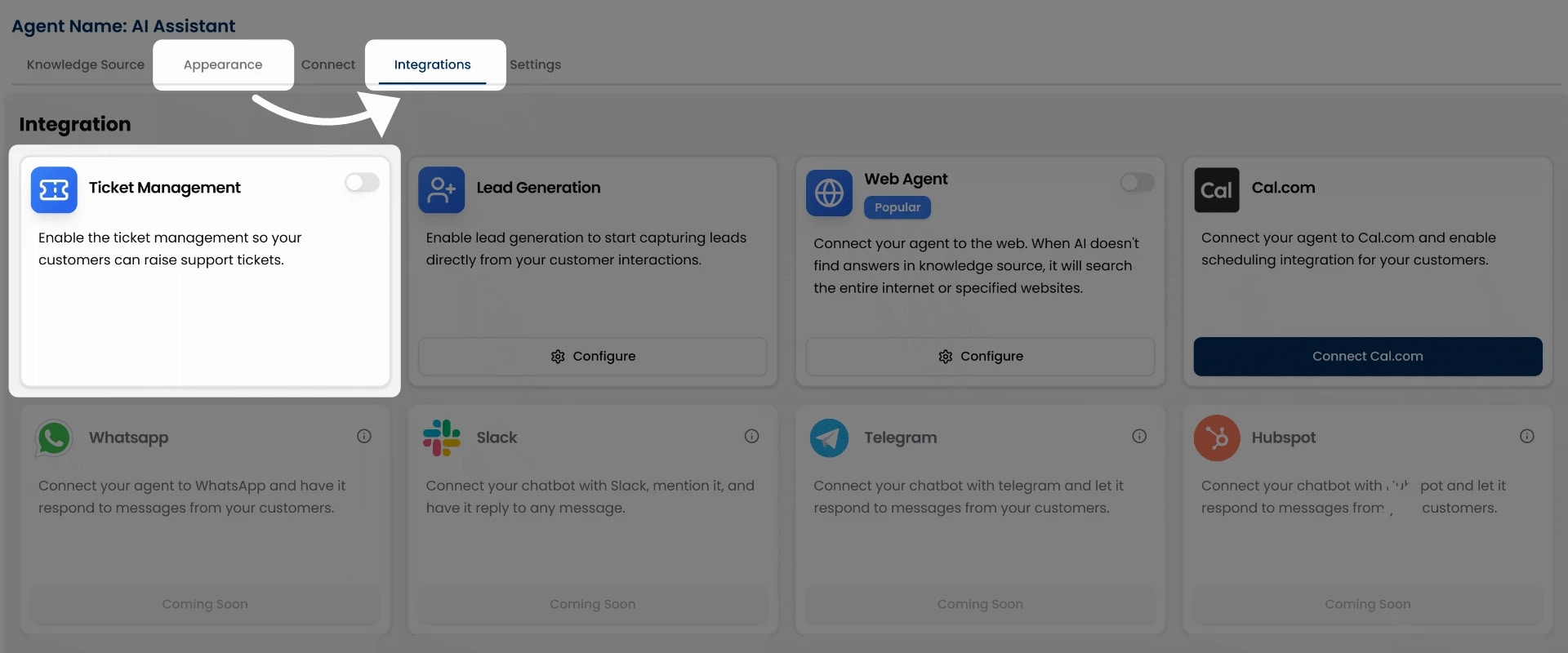
Switch to the **Integrations** tab in the top navigation.
Click “**View Agent**” under the agent you want to connect integrations with. This opens the agent’s settings page, starting with the Appearance tab.
Switch to the **Integrations** tab in the top navigation.
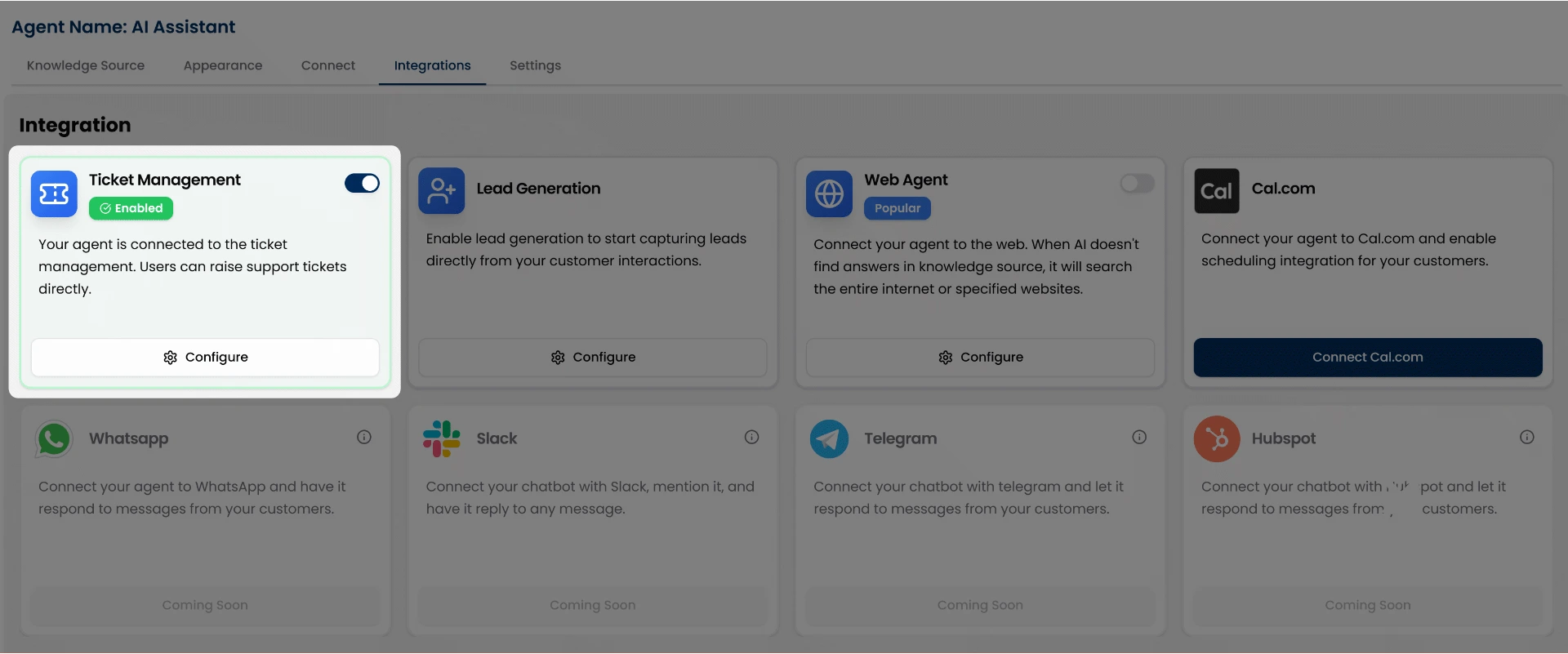
 Click the toggle button in front of **Ticket Management** to turn on support tickets.
For a step-by-step walkthrough of accessing and managing integrations, see [Integration Overview](/integrations/overview).
## Configuring a Trigger Phrase
Once you’ve turned on the Ticket Management integration.
Click the toggle button in front of **Ticket Management** to turn on support tickets.
For a step-by-step walkthrough of accessing and managing integrations, see [Integration Overview](/integrations/overview).
## Configuring a Trigger Phrase
Once you’ve turned on the Ticket Management integration.
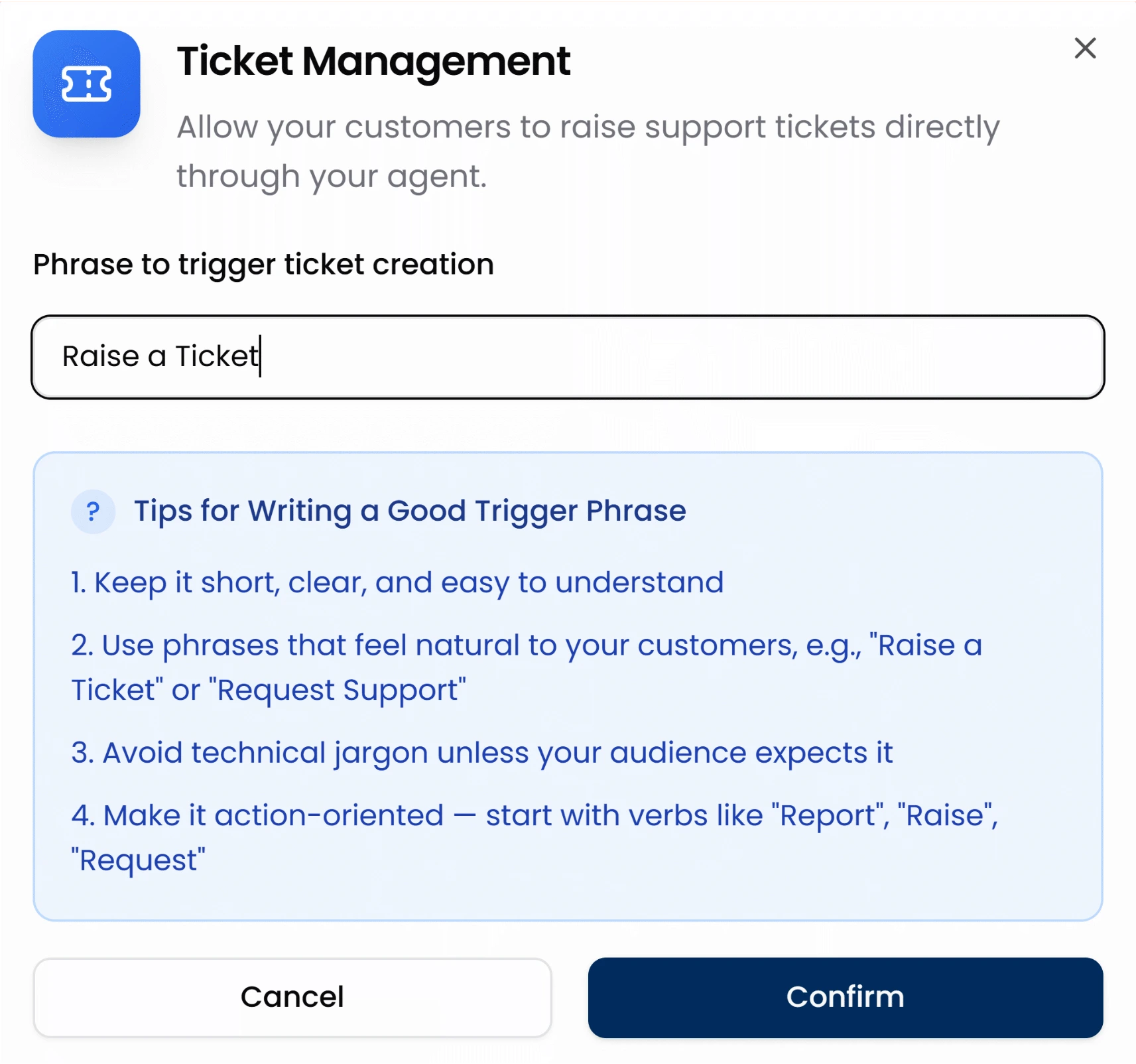
 Click the **Configure** button to set your custom trigger phrase.
You’ll see an input box where you can define a phrase like:
* “Raise a ticket”
* “Report an issue”
* “Submit a support request”
Click the **Configure** button to set your custom trigger phrase.
You’ll see an input box where you can define a phrase like:
* “Raise a ticket”
* “Report an issue”
* “Submit a support request”
 After entering your phrase, click **Confirm** to save it.
This trigger phrase tells the chat agent when to show the support ticket form. But here’s where it gets powerful.
## How the Trigger Works in Real Conversations
myIDFI AI agents are smart. They understand user intent from natural conversation.
So whenever users ask for support in a natural way, like saying:
* “I need help configuring this.”
* “Can someone assist me?”
* “I want support to sort this issue out.”
The agent can recognize the context and respond with a button using the trigger phrase you configured (e.g., “Raise a Ticket”).
Once the user clicks the button, the agent will prompt them with a simple form to collect:
* Name
* Email
* Issue description
The user fills it out and hits **Create Ticket**; that’s it. The ticket is instantly logged.
Isn’t it beautiful to let users raise a support ticket from the chat agent itself? **Yes, it is.** It removes barriers, reduces friction, and dramatically improves your support experience.
## Preview in Chat
Here’s how the ticket creation process looks from the user’s side in the chat agent:
After entering your phrase, click **Confirm** to save it.
This trigger phrase tells the chat agent when to show the support ticket form. But here’s where it gets powerful.
## How the Trigger Works in Real Conversations
myIDFI AI agents are smart. They understand user intent from natural conversation.
So whenever users ask for support in a natural way, like saying:
* “I need help configuring this.”
* “Can someone assist me?”
* “I want support to sort this issue out.”
The agent can recognize the context and respond with a button using the trigger phrase you configured (e.g., “Raise a Ticket”).
Once the user clicks the button, the agent will prompt them with a simple form to collect:
* Name
* Email
* Issue description
The user fills it out and hits **Create Ticket**; that’s it. The ticket is instantly logged.
Isn’t it beautiful to let users raise a support ticket from the chat agent itself? **Yes, it is.** It removes barriers, reduces friction, and dramatically improves your support experience.
## Preview in Chat
Here’s how the ticket creation process looks from the user’s side in the chat agent:
 ## Where the tickets go
All tickets submitted through the chat agent are visible in your myIDFI AI dashboard under the **Tickets** section on the left sidebar. You can track and manage all support tickets from there.
Moreover, you’ll also receive an email notification whenever a user raises a ticket.
For a better understanding of how to view, and manage submitted tickets, check out the Tickets section of the documentation.
For a better understanding of how to view and manage submitted tickets, check out the Tickets section of the documentation.
## Where the tickets go
All tickets submitted through the chat agent are visible in your myIDFI AI dashboard under the **Tickets** section on the left sidebar. You can track and manage all support tickets from there.
Moreover, you’ll also receive an email notification whenever a user raises a ticket.
For a better understanding of how to view, and manage submitted tickets, check out the Tickets section of the documentation.
For a better understanding of how to view and manage submitted tickets, check out the Tickets section of the documentation.