How to Enable Cal.com Integration
Go to your Chat Agents dashboard.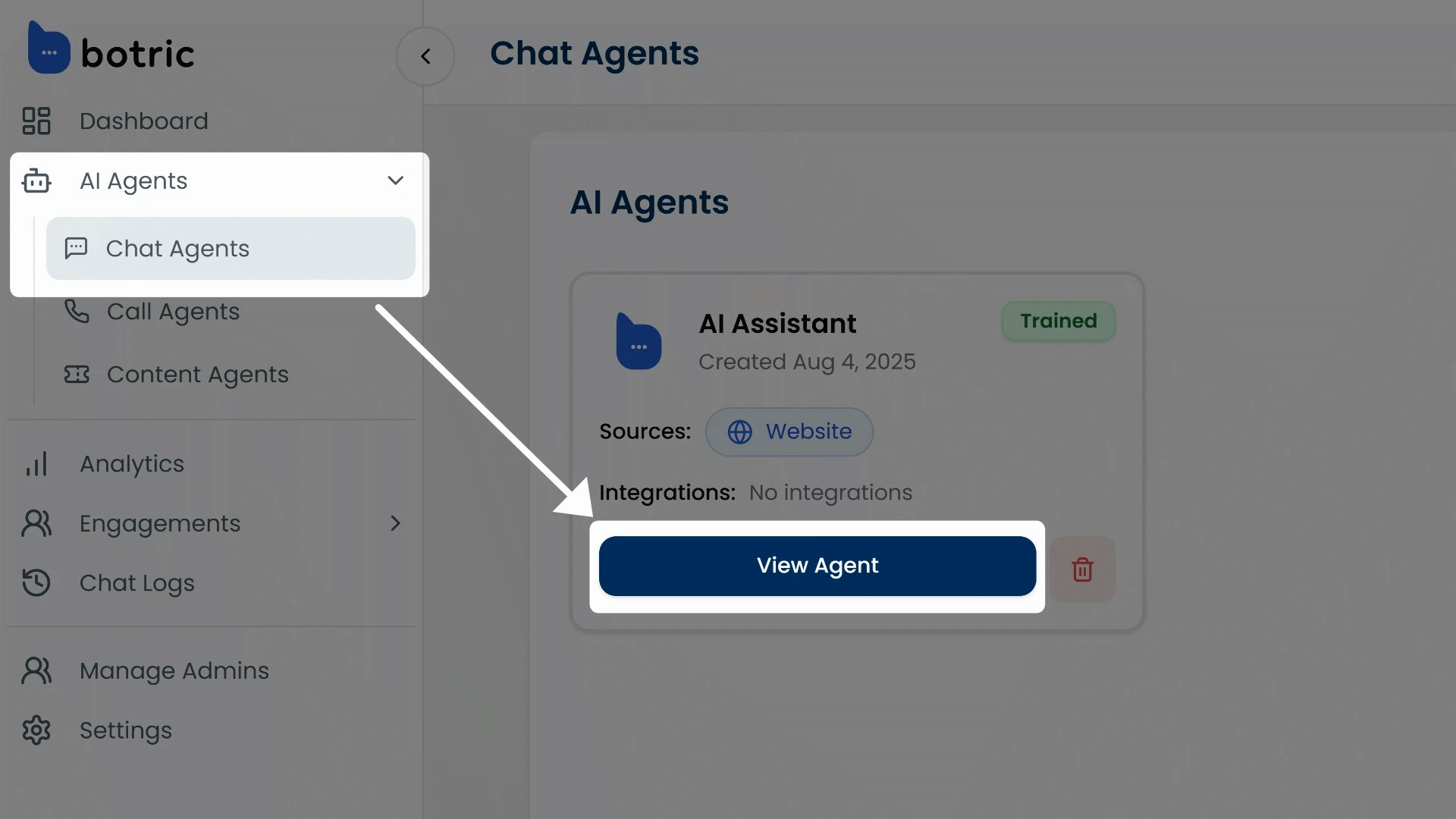
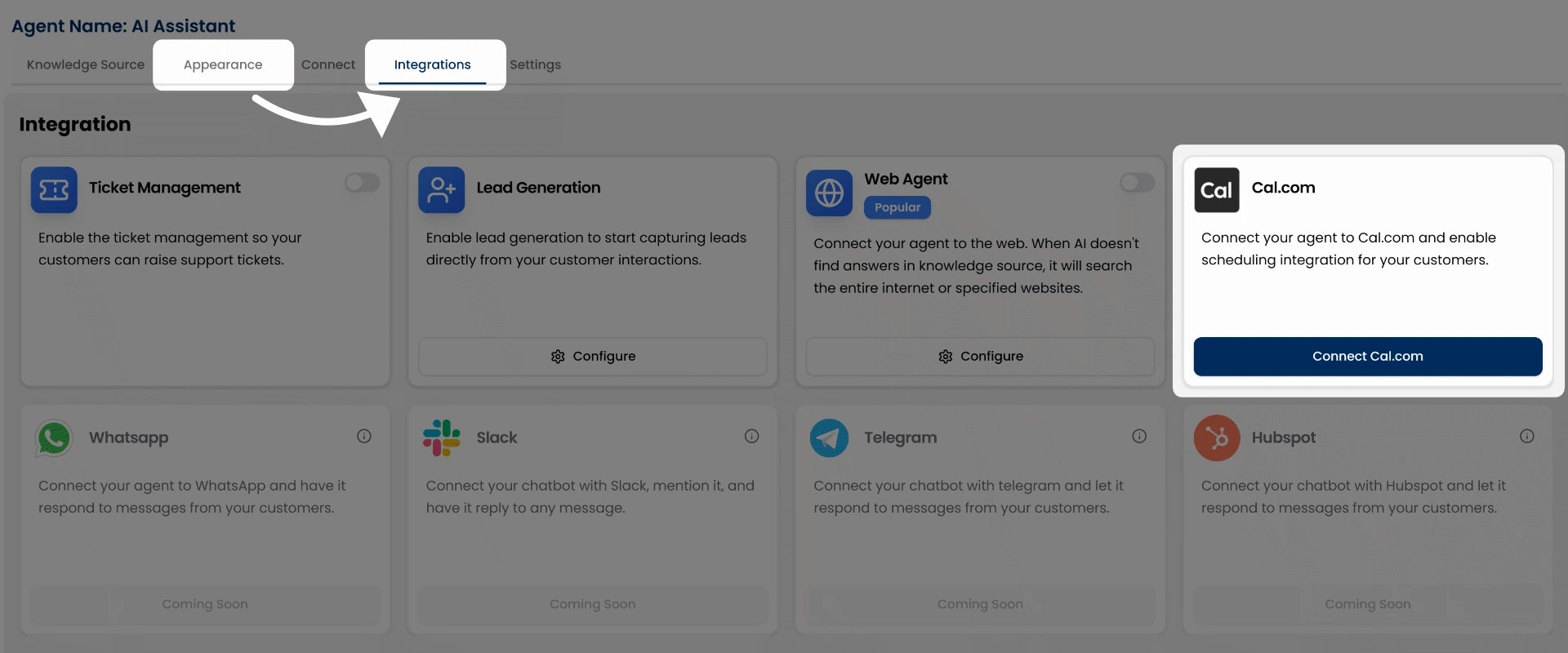
How to Connect Your Event URL
To connect your booking link:1
First Step:
Click the Connect Cal.com button.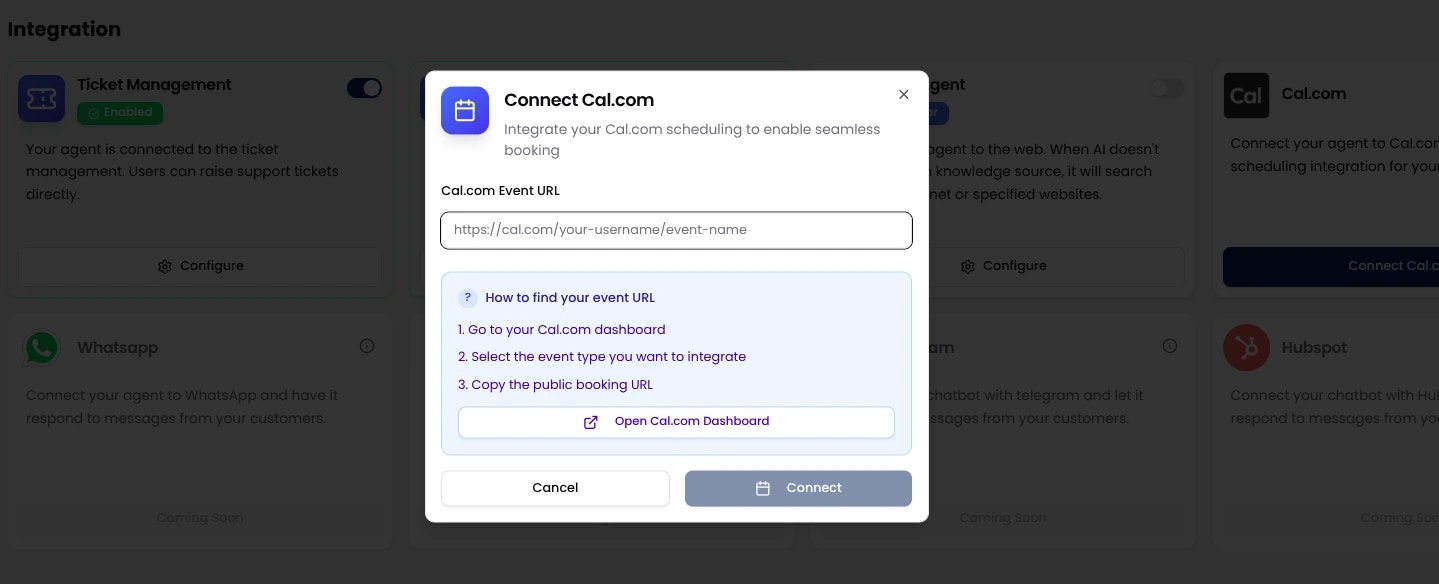
2
Second Step:
Paste your Cal.com booking URL in the input field.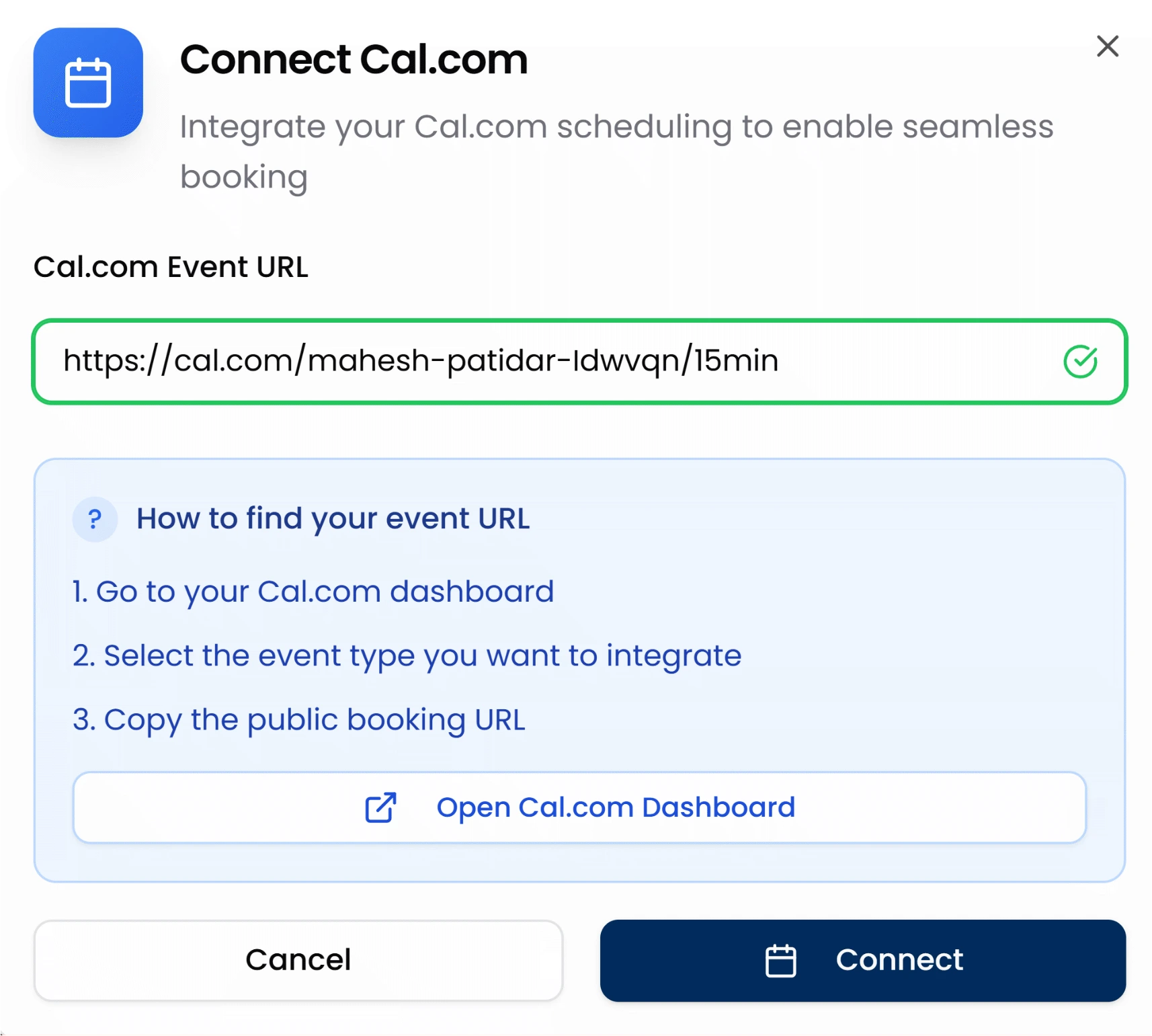
https://cal.com/yourname/demo-call3
Third Step:
Click Connect to link your Cal.com account with the AI agent.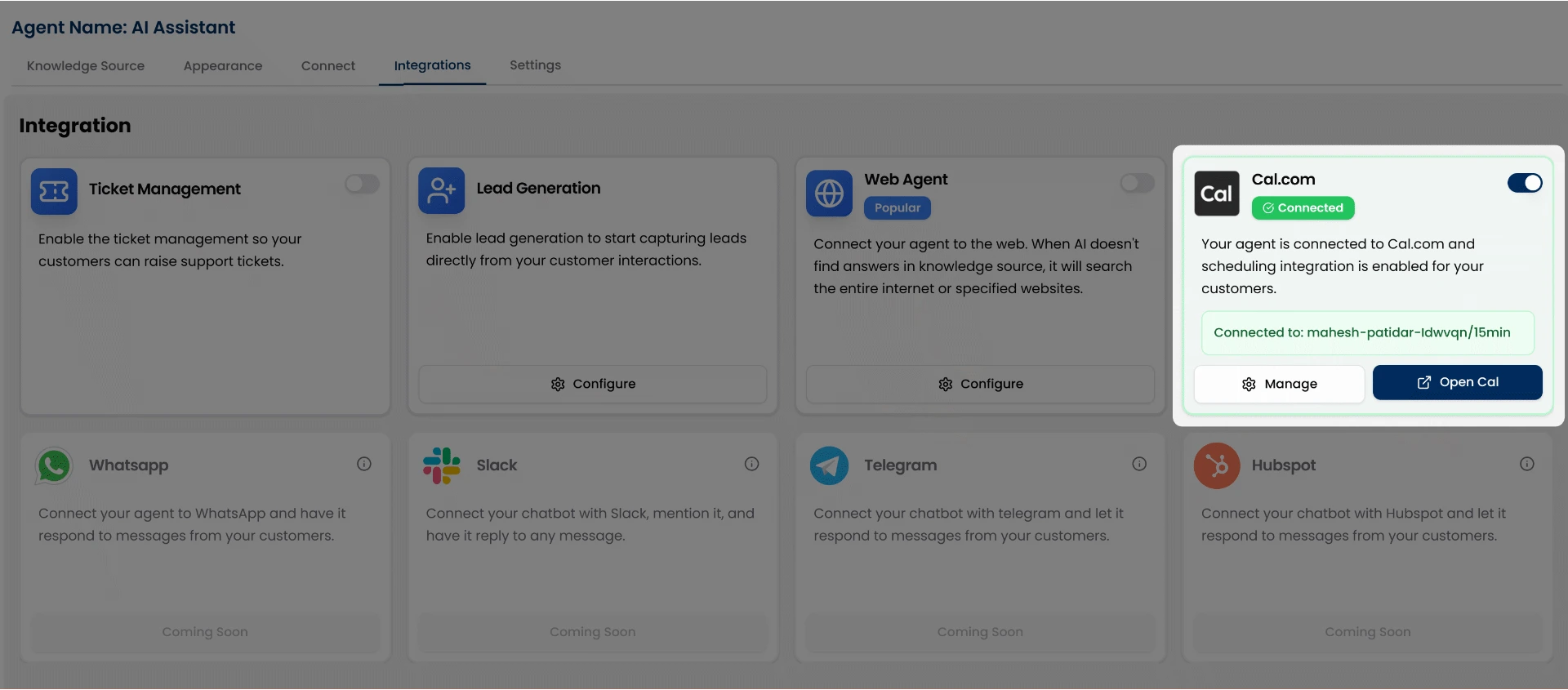
Where to Find Your Cal.com Event URL
- Log in to your Cal.com dashboard.
- Go to the Events section and select the event you want users to book.
- Copy the public event URL (e.g., https://cal.com/yourname/meeting).
- Paste this into the myIDFI AI integration input field and click Connect.
Preview in Chat
Once your Cal.com URL is connected, your AI Agent will automatically detect user intent to schedule a call or meeting. For example, if a user types:- “Can I book a demo?”
- “I want to schedule a call”
- “Need to speak with your team”
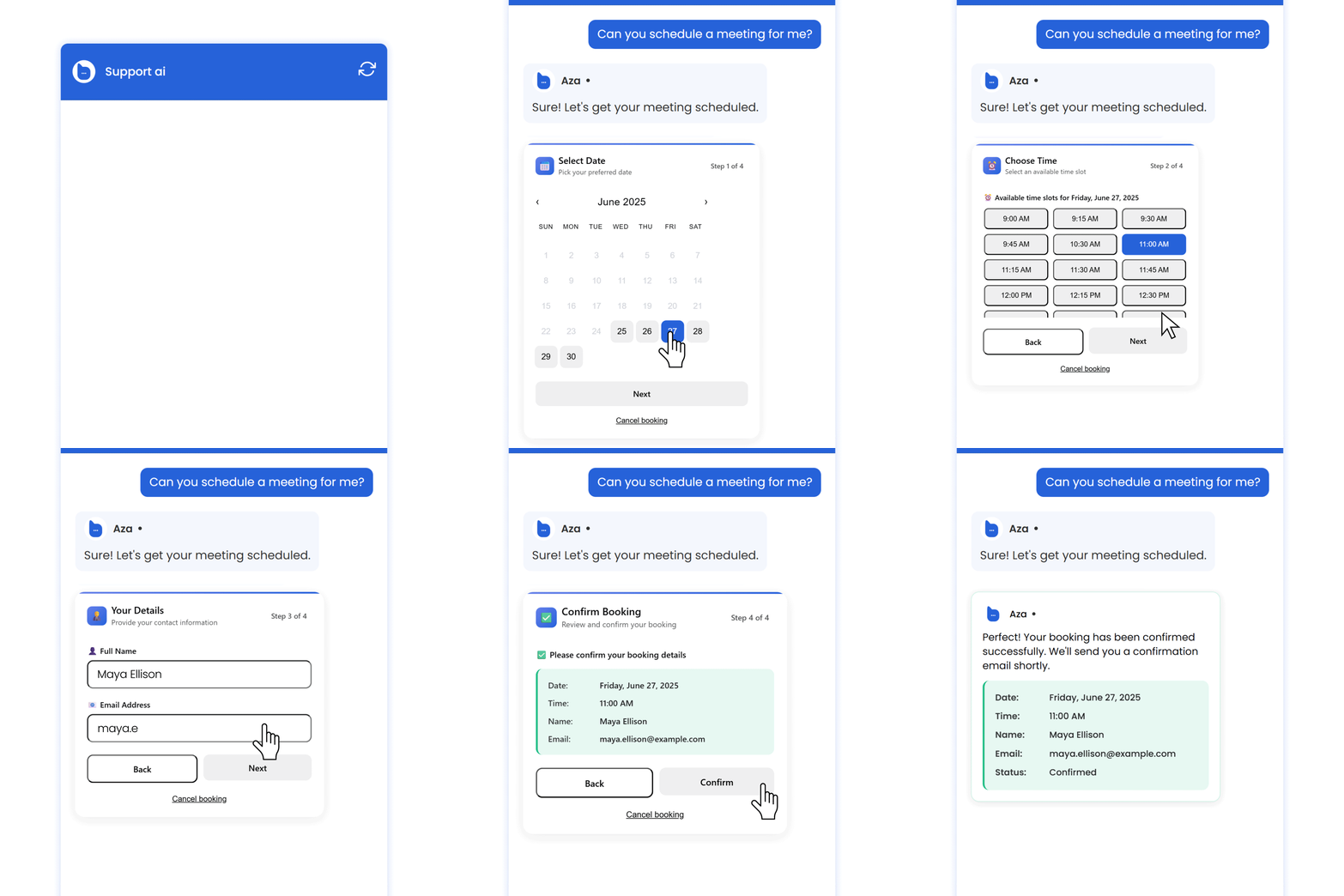
Where the bookings go
All meetings scheduled through the chat agent are visible in your myIDFI AI dashboard under the Scheduled Calls section on the left sidebar. You can track and manage all upcoming bookings from there. Each event is also synced with your connected Cal.com account, so everything stays up to date automatically.View & Manage Bookings
For a better understanding of how to view and manage scheduled calls, check out the Scheduled Calls section of the documentation.