With the Ticket Management integration enabled, your AI Agent understands when customers need help or support and instantly provides a way to raise a ticket. When users ask for assistance, the agent displays a simple form where they can enter their name, email, and issue details, and then submit it as a support ticket immediately.

How to Enable Ticket Management

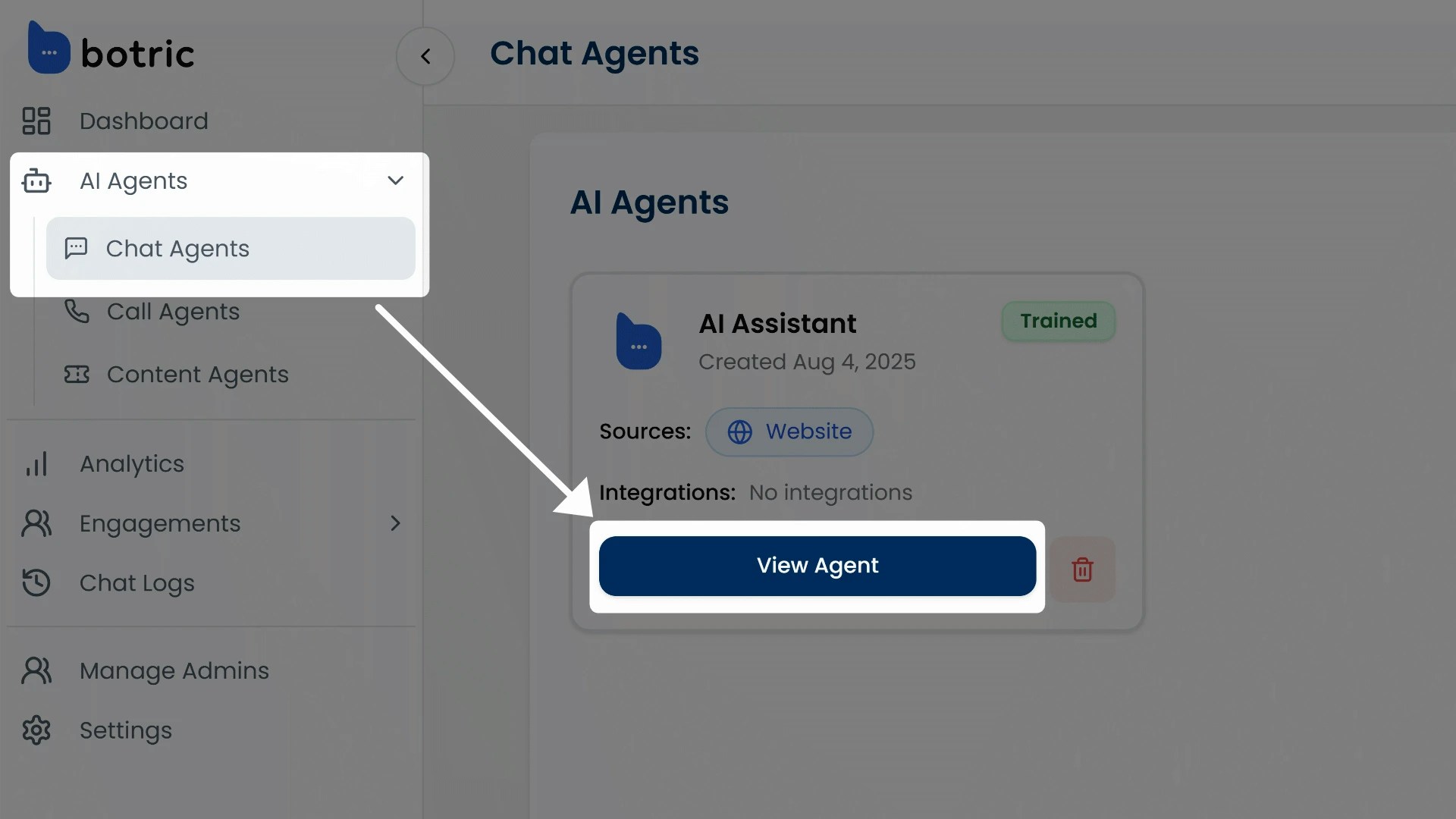
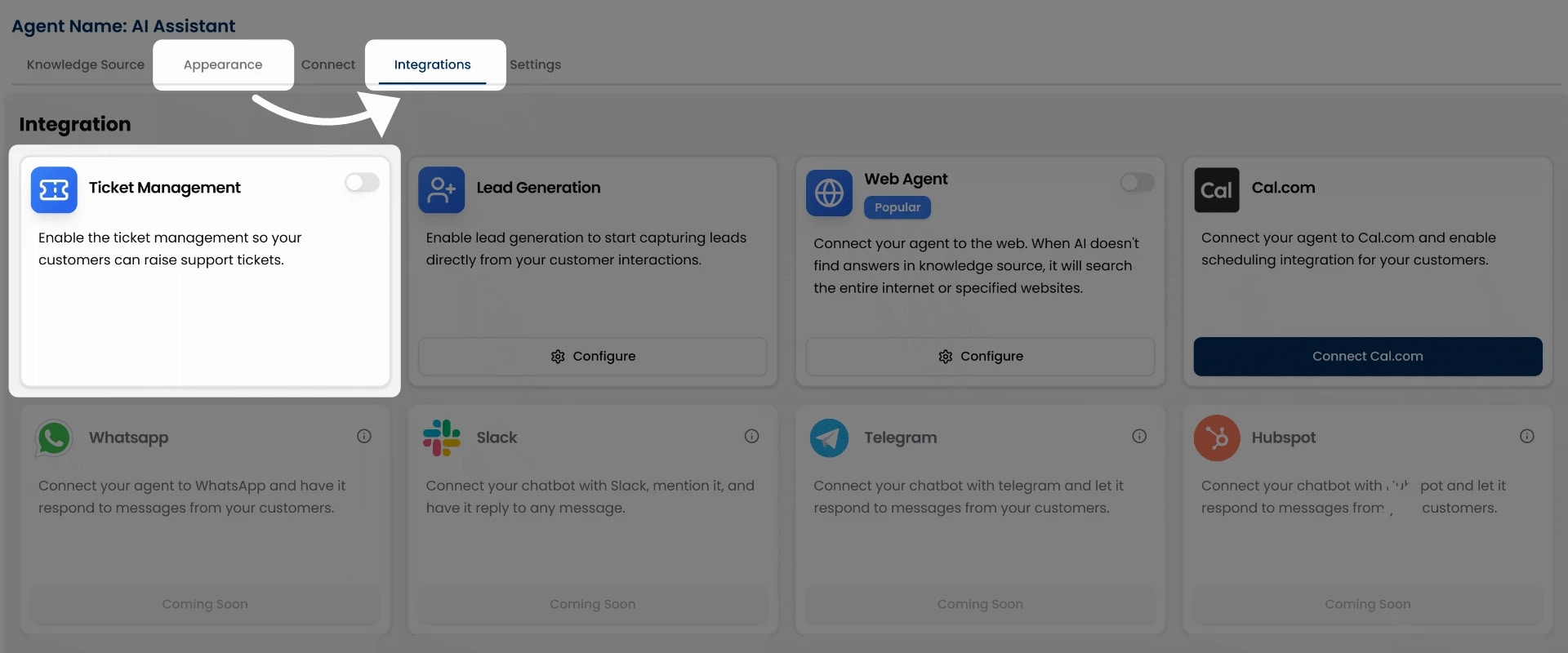
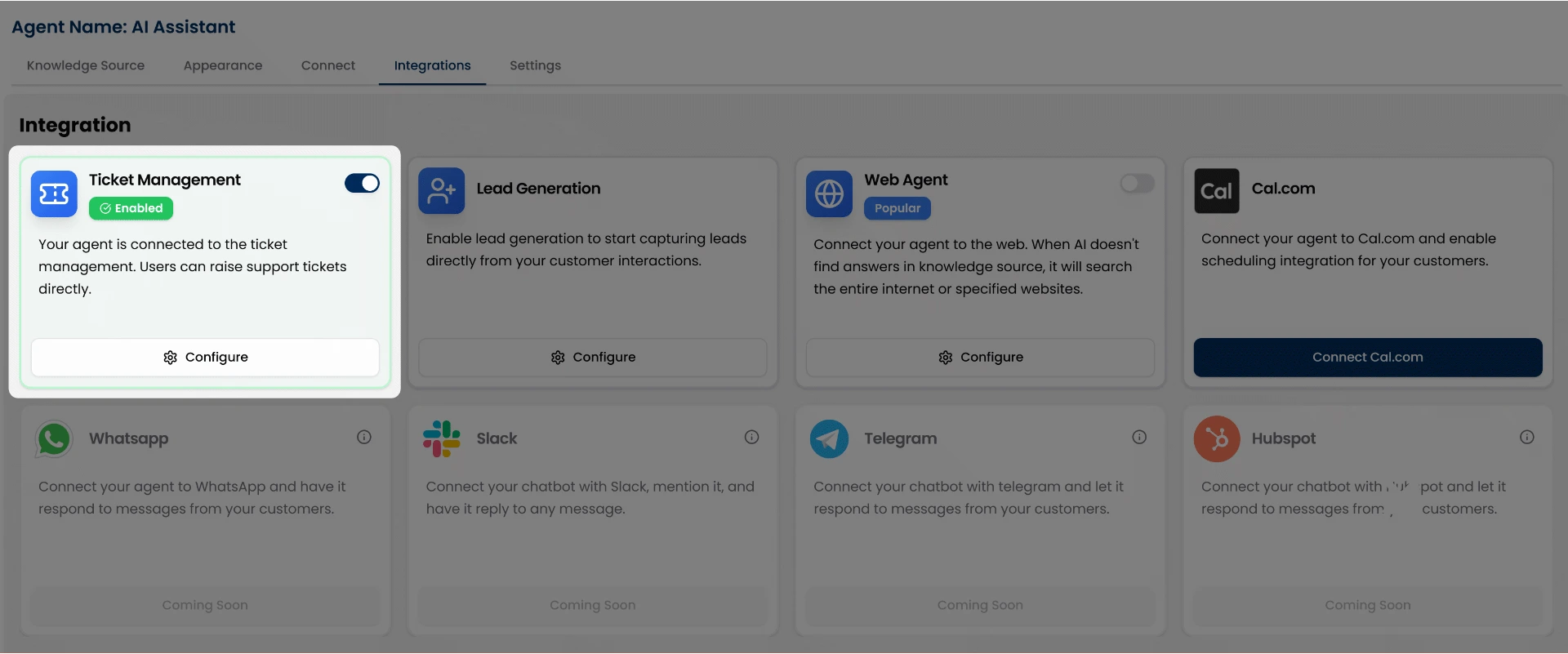
We made the process of enabling ticket management quite simple. All you need to do is go to your AI Agents → Chat Agents dashboard and click View Agent on the agent you’d like to update. Integration section Click “View Agent” under the agent you want to connect integrations with. This opens the agent’s settings page, starting with the Appearance tab. Switch to the Integrations tab in the top navigation. Integration section Click the toggle button in front of Ticket Management to turn on support tickets.
For a step-by-step walkthrough of accessing and managing integrations, see Integration Overview.

Configuring a Trigger Phrase

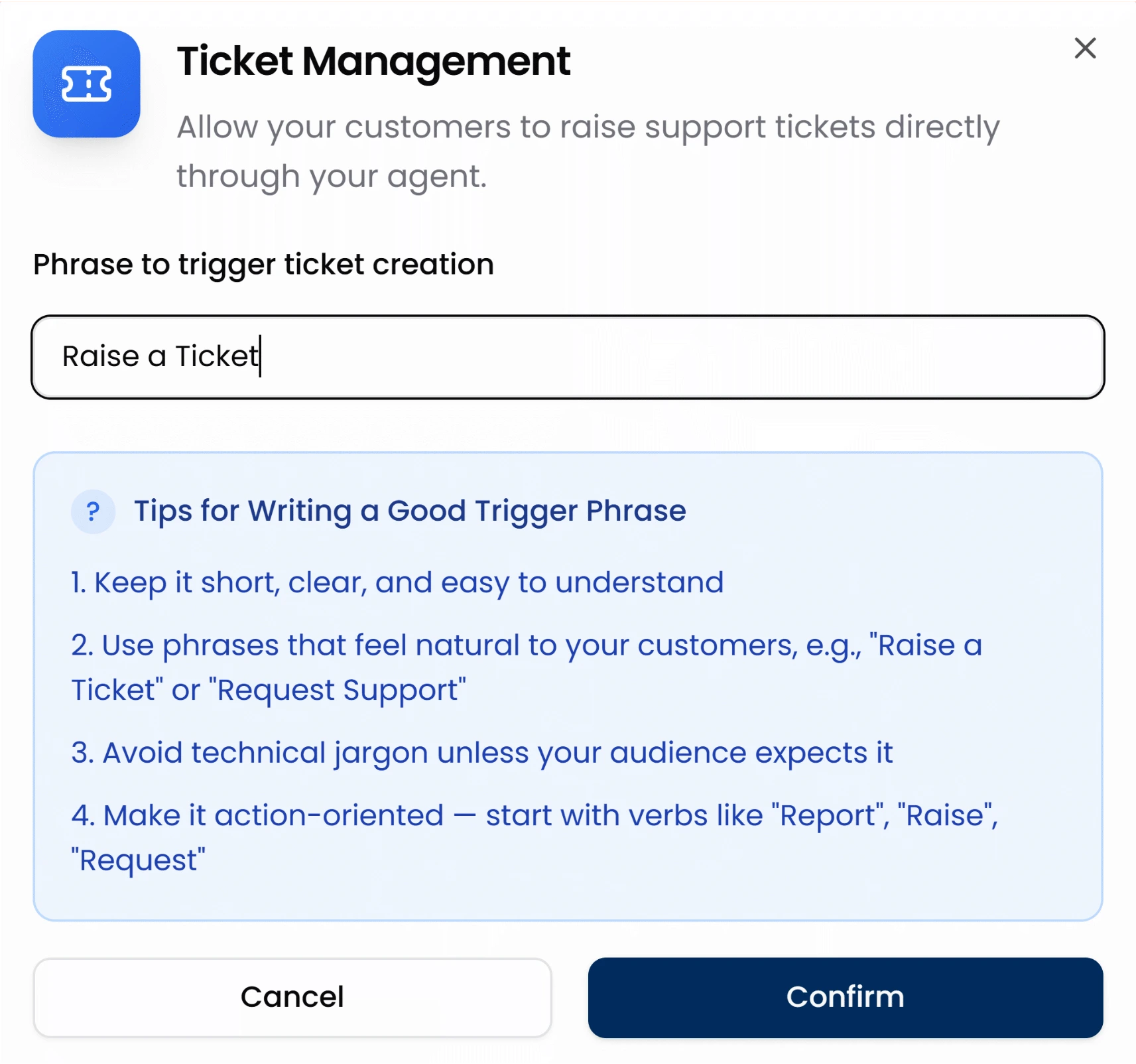
Once you’ve turned on the Ticket Management integration. Once you’ve turned on the Ticket Management integration. Click the Configure button to set your custom trigger phrase. You’ll see an input box where you can define a phrase like:
  • “Raise a ticket”
  • “Report an issue”
  • “Submit a support request”
Click the Configure button to set your custom trigger phrase. After entering your phrase, click Confirm to save it. This trigger phrase tells the chat agent when to show the support ticket form. But here’s where it gets powerful.

How the Trigger Works in Real Conversations

myIDFI AI agents are smart. They understand user intent from natural conversation. So whenever users ask for support in a natural way, like saying:
  • “I need help configuring this.”
  • “Can someone assist me?”
  • “I want support to sort this issue out.”
The agent can recognize the context and respond with a button using the trigger phrase you configured (e.g., “Raise a Ticket”). Once the user clicks the button, the agent will prompt them with a simple form to collect:
  • Name
  • Email
  • Issue description
The user fills it out and hits Create Ticket; that’s it. The ticket is instantly logged. Isn’t it beautiful to let users raise a support ticket from the chat agent itself? Yes, it is. It removes barriers, reduces friction, and dramatically improves your support experience.

Preview in Chat

Here’s how the ticket creation process looks from the user’s side in the chat agent: Descriptive alt text

Where the tickets go

All tickets submitted through the chat agent are visible in your myIDFI AI dashboard under the Tickets section on the left sidebar. You can track and manage all support tickets from there. Moreover, you’ll also receive an email notification whenever a user raises a ticket. For a better understanding of how to view, and manage submitted tickets, check out the Tickets section of the documentation.

View & Manage Tickets

For a better understanding of how to view and manage submitted tickets, check out the Tickets section of the documentation.