Why Integrate?
Integrations let your AI agent do more than just answer questions; they allow it to take real actions across your existing tools. Instead of stopping at a response, your agent can:- Create a support ticket when a user reports an issue.
- Capture lead details when someone shows interest.
- Let customers book meetings, demos, and more.
Available Integrations
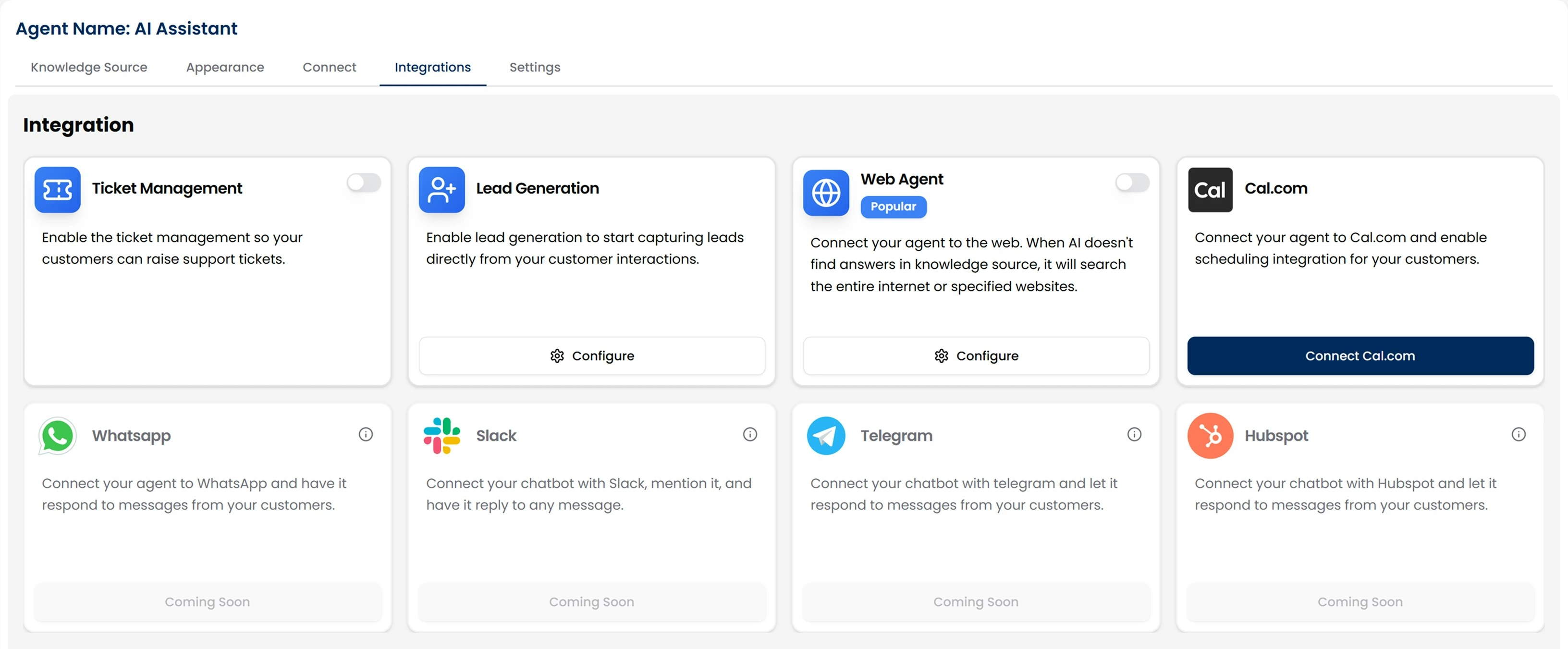
Here’s what you can connect today:- Ticket Management → Allows users to log support issues as tickets.
- Lead Generation → Capture contact details and qualify leads instantly.
- Cal.com → Allow users to book meetings directly inside the chat.
- Web Agent → Expand your agent’s knowledge by letting it search the web.
Click any of the integrations above to learn how to connect and configure each one.
How to Integrate Tools with Your AI Agent
There are two ways you can integrate external tools into your AI Agent:Option 1: During Agent Creation
While creating your AI agent, you’ll see a step called Integrations.- From here, toggle on the tools you want to use.
- Customize settings for each integration (e.g., setting a Cal.com link or defining lead fields).
You can skip this step if you’re not ready; it’s always available later.
Option 2: After Your Agent Is Created
Already created your AI Agent? No problem. You can add or remove integrations at any time. From the left-hand sidebar in your dashboard, go to AI Agents → Chat Agents. You’ll see a list of all the AI agents you’ve created.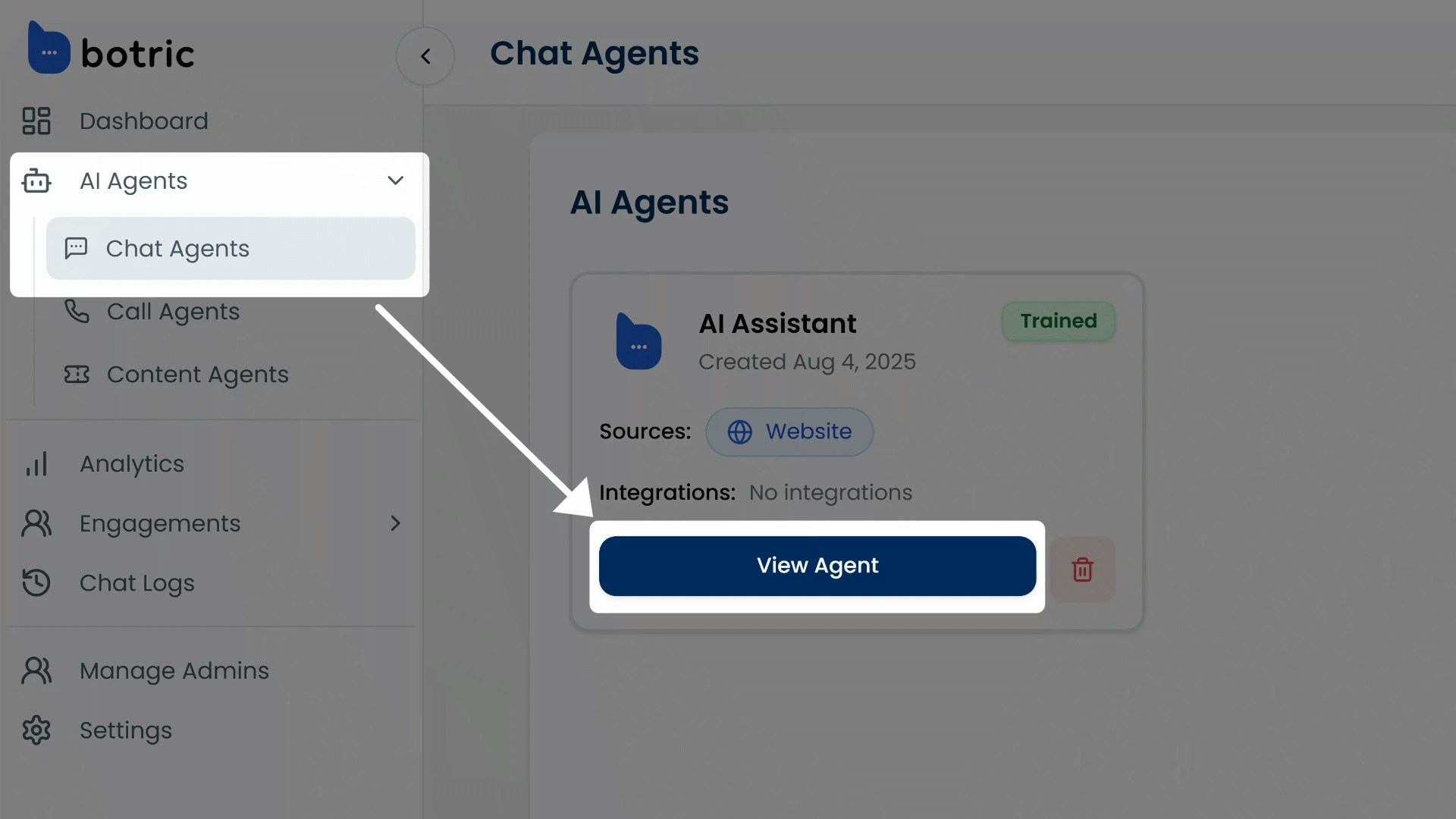
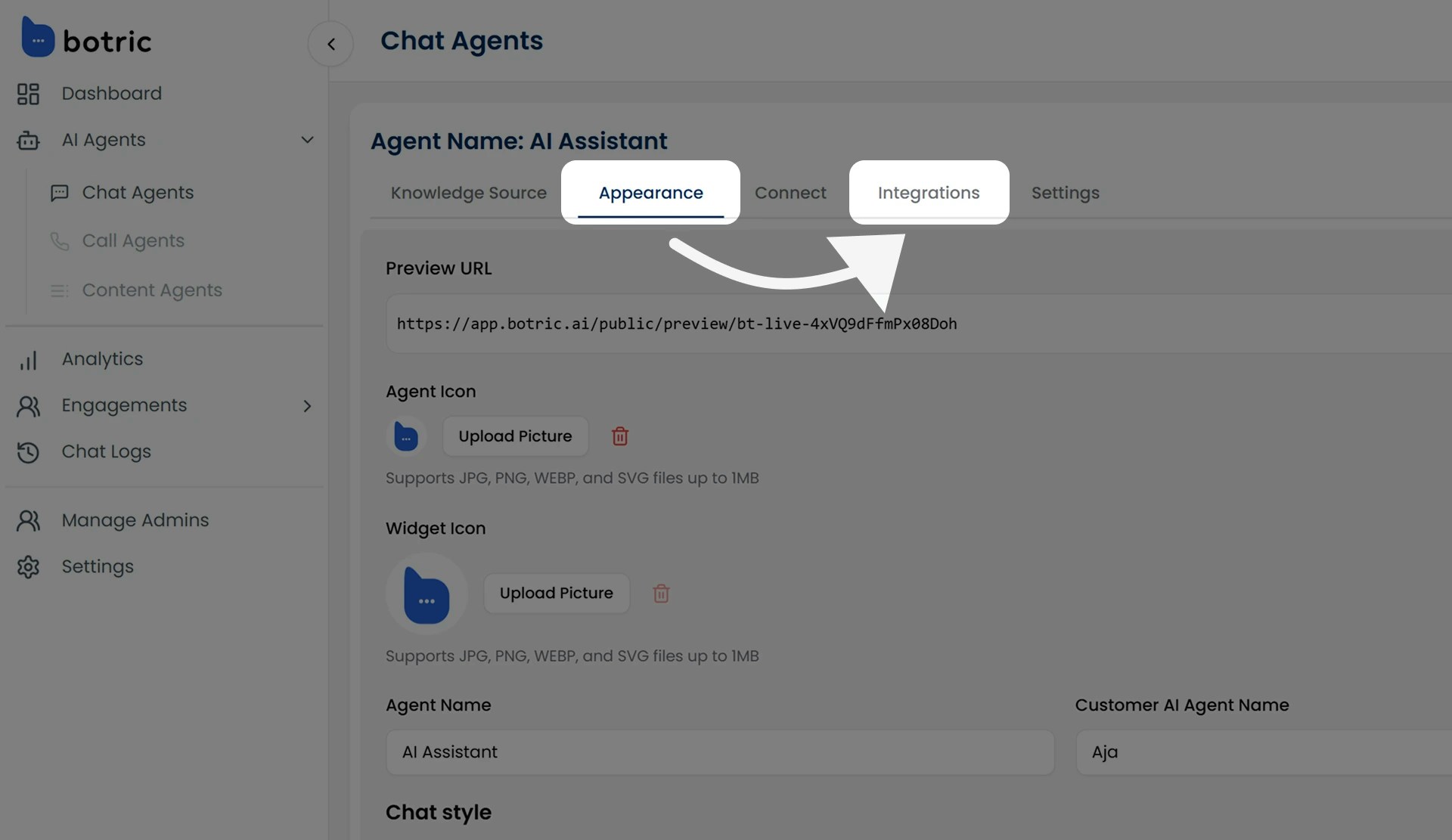
- Turn individual integrations ON or OFF.
- Configure tools like Lead Generation, Cal.com, or Ticket Management.
- Add new integrations as needed.
- Remove or edit existing ones anytime.