Why Use the Web Agent?
The Web Agent boosts your AI assistant’s ability to handle edge cases or missing content without requiring constant manual updates. By enabling this feature, the agent first searches your configured knowledge sources and, if no relevant answer is found, expands its search to the wider web. This ensures that your users receive the most accurate and complete responses without hitting dead ends. You can choose to restrict the search to trusted websites for more control, or leave it open for broader coverage.How to Enable and Configure Web Agent
Follow these steps to enable the Web Agent and set up custom search preferences:1
Open Integrations
Go to your Chat Agents dashboard and click View Agent for the one you want to update. This opens the agent’s settings page, starting with the Appearance tab.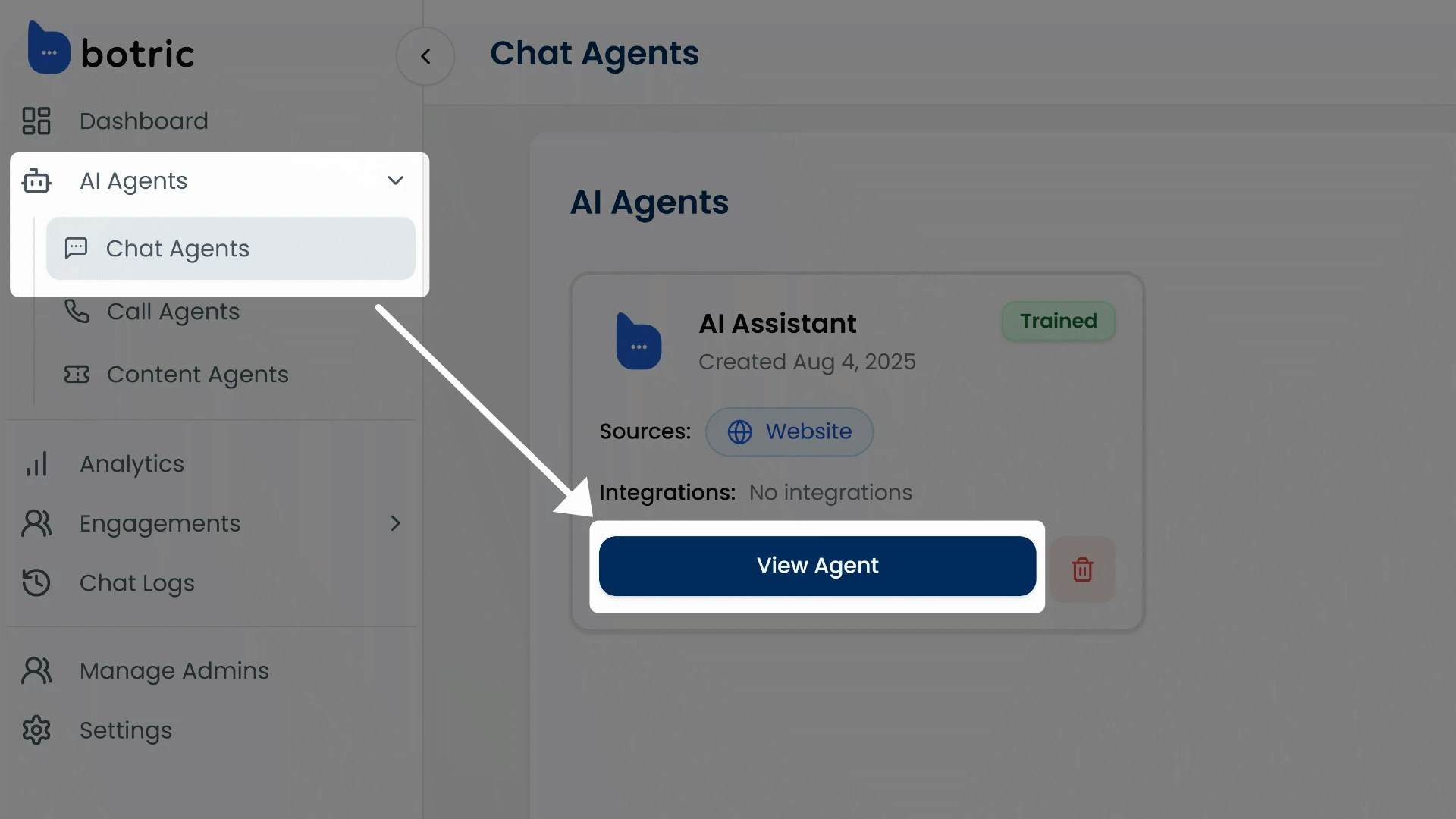
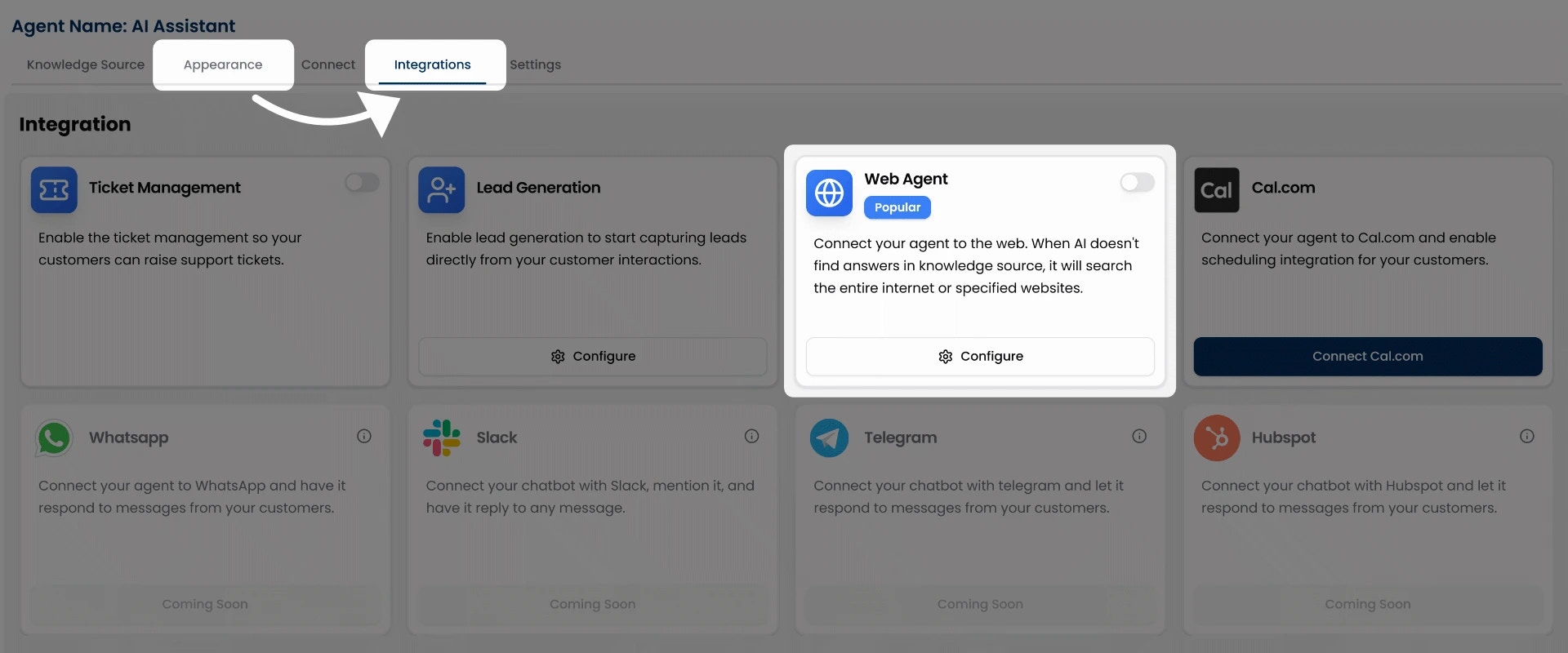
2
Enable the Web Agent
Locate the Web Agent card and toggle the switch to turn it on.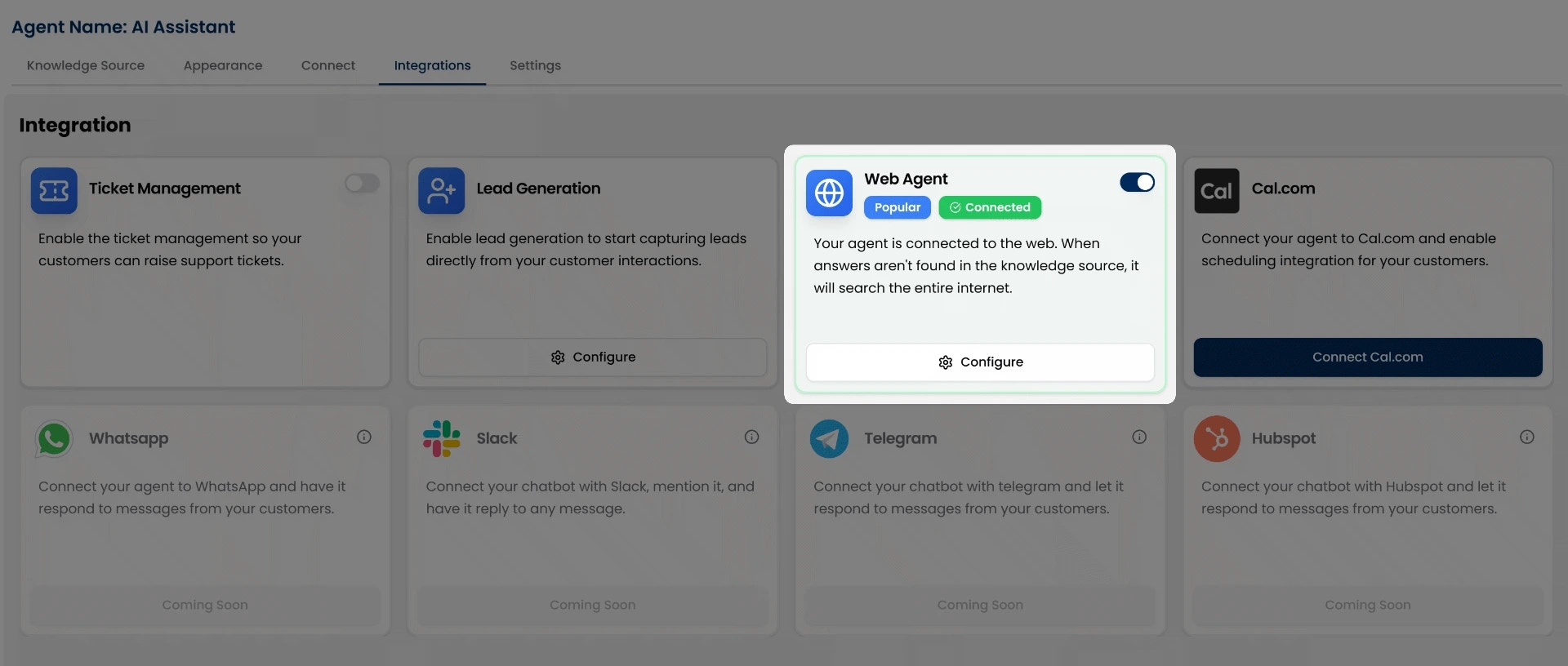
3
Click Configure Button
Once enabled, click the Configure button to open the settings modal.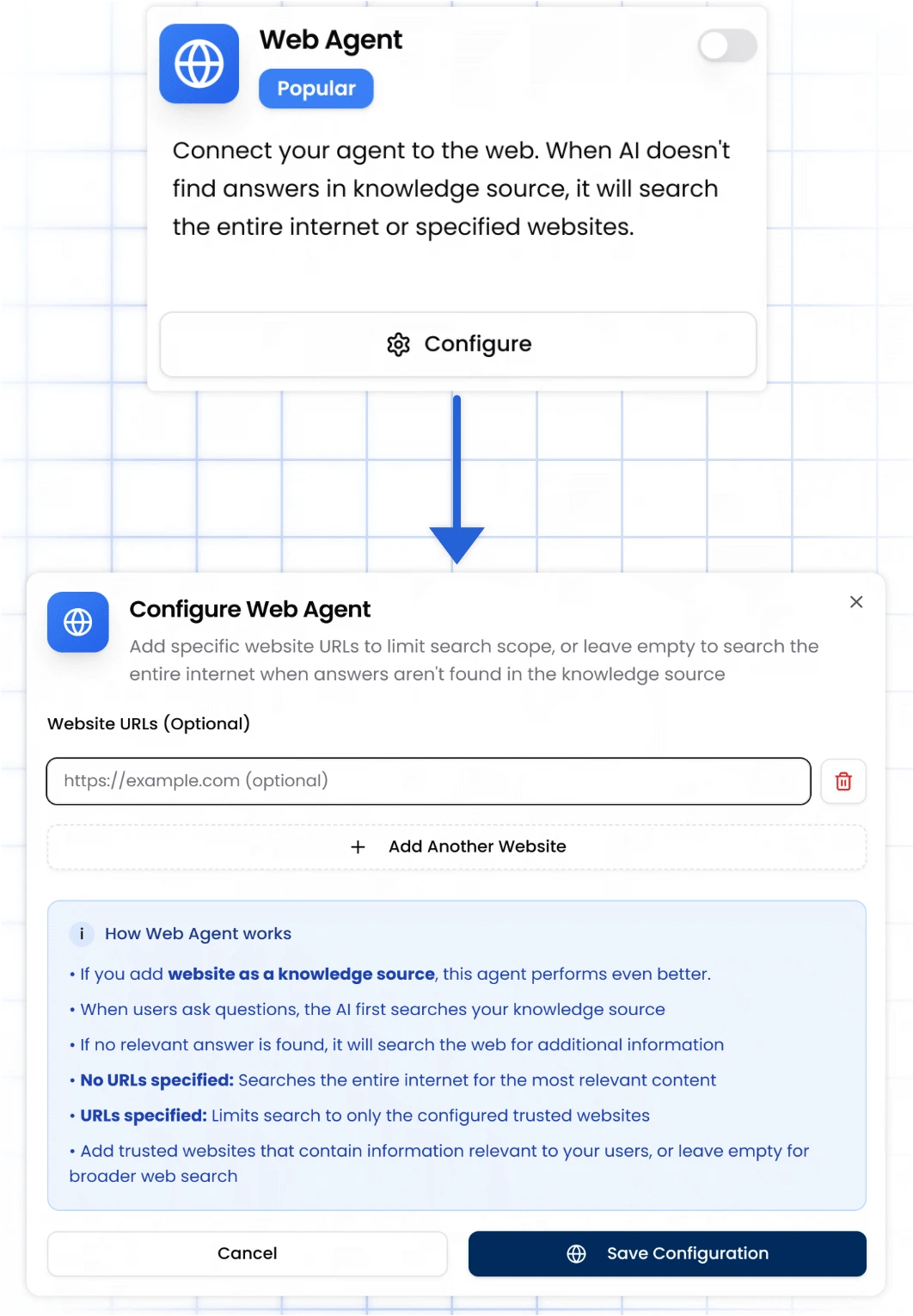
4
Add Trusted Websites (Optional)
In the configuration modal: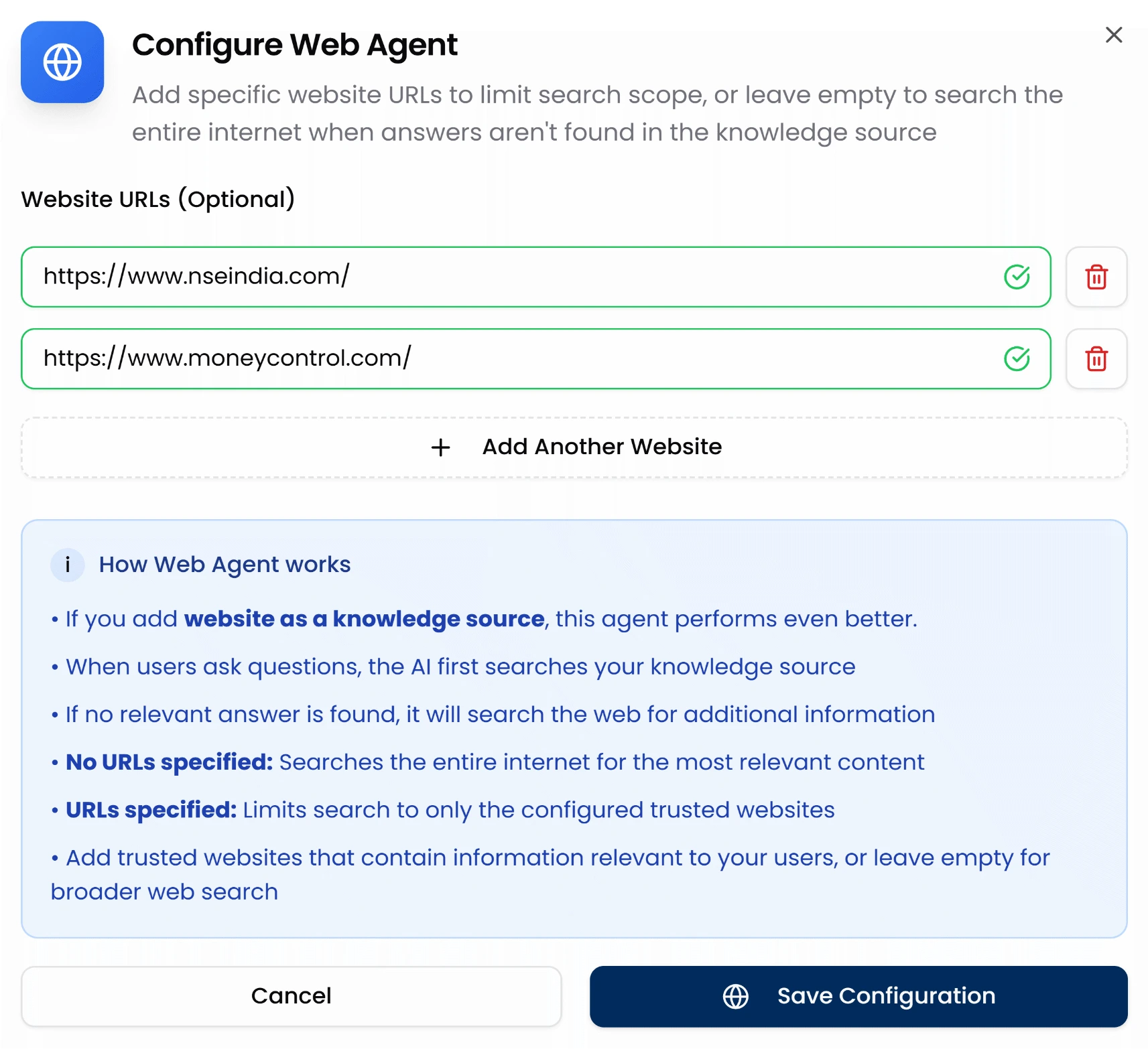
- You can enter up to 10 website URLs to restrict the search scope to trusted sources.
- Click “+ Add Another Website” to include multiple links.
- Leave the list empty if you’d prefer the AI to search the entire internet when no match is found in your knowledge sources.
5
Save Configuration
Once you’ve added the desired websites (or left it blank), click Save Configuration to apply your settings.
How Web Agent Works
- When a user asks a question, the AI first searches your connected knowledge sources (documents, files, links, text).
- If no relevant information is found:
- If URLs are specified: The agent will only search the configured websites.
- If no URLs are specified: The agent will search the entire internet.
- The best answer is selected and shown to the user.
Best Practices
- Use reliable sources: Add websites that publish factual, up-to-date, and relevant content.
- Keep it industry-specific: Include links that reflect your business niche (e.g., your docs, blog, or trusted third-party sites).
- Max 10 websites: Keep your source list focused to maintain performance and answer quality.
- Avoid vague or low-quality sources: These can reduce answer precision and user trust.
Coming Soon
We’re actively building deeper integrations with:- Slack
- Telegram
- HubSpot