How to Enable and Configure Lead Generation
Follow these steps to activate and customize the lead capture process:1
Go to the Lead Generation Integration
Navigate to the Lead Generation card under the Integrations tab in your dashboard.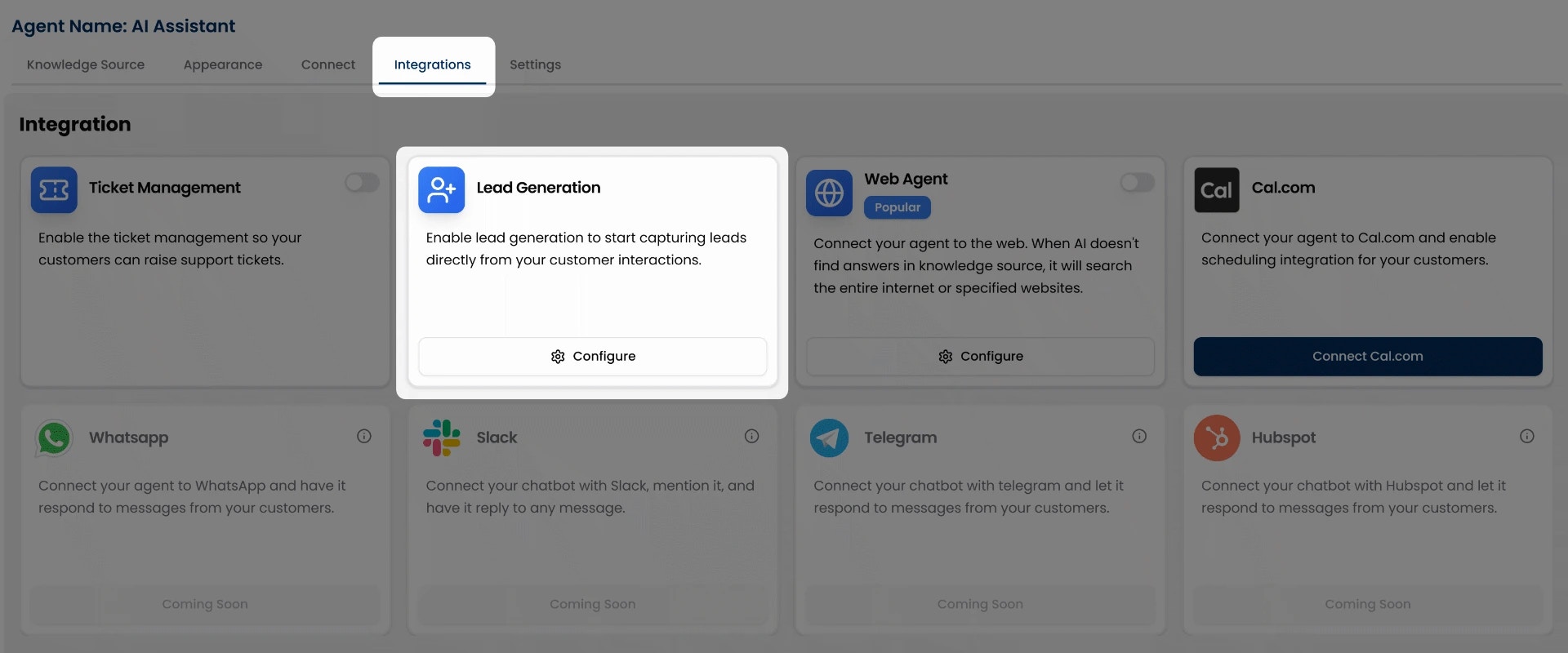
2
Click on Configure
Click the Configure button to open the Leads Capture Form.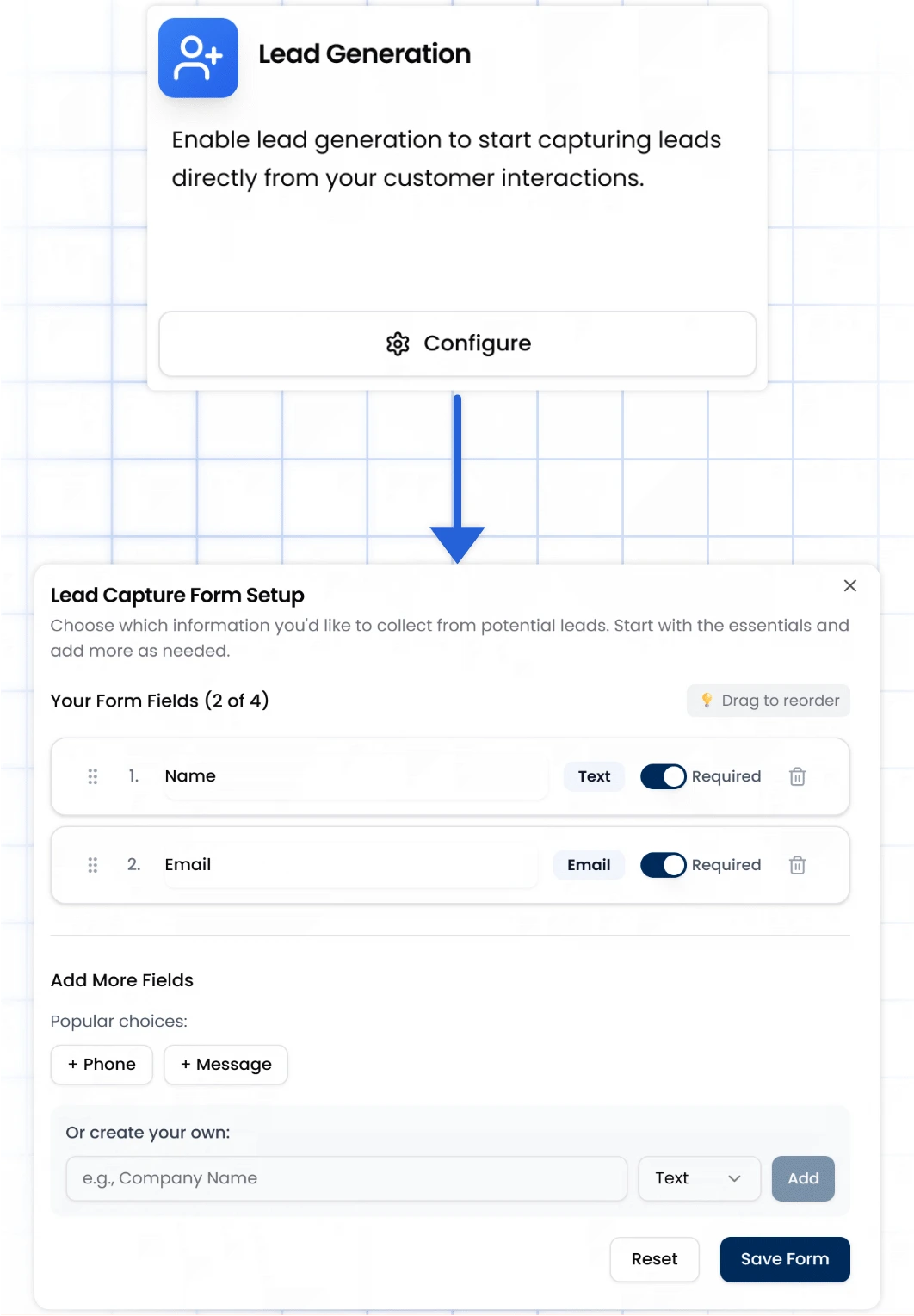
There’s no toggle or activation step, configuring the form is all you need to start capturing leads.
3
Set Up Your Lead Capture Form
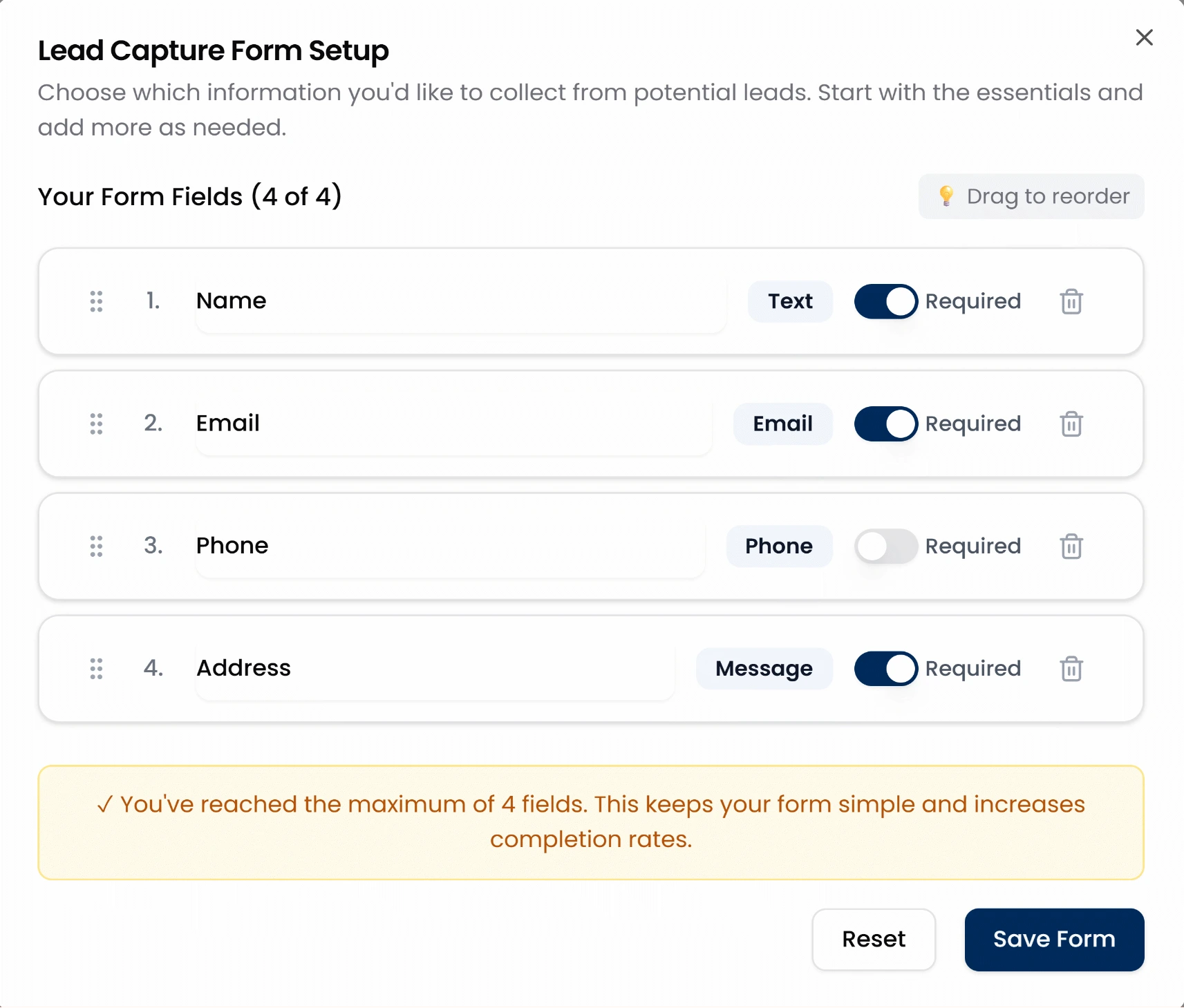
- Choose from recommended fields: Name, Email, Phone, Message.
- Add up to 4 fields total.
- Mark any field as Required.
- Reorder fields using drag and drop.
- Add custom fields by entering a label and selecting the field type (Text, Phone, Email, or Message).
4
Save Your Configuration
Once done, click Save Form. Your AI agent will now prompt users to fill out this form.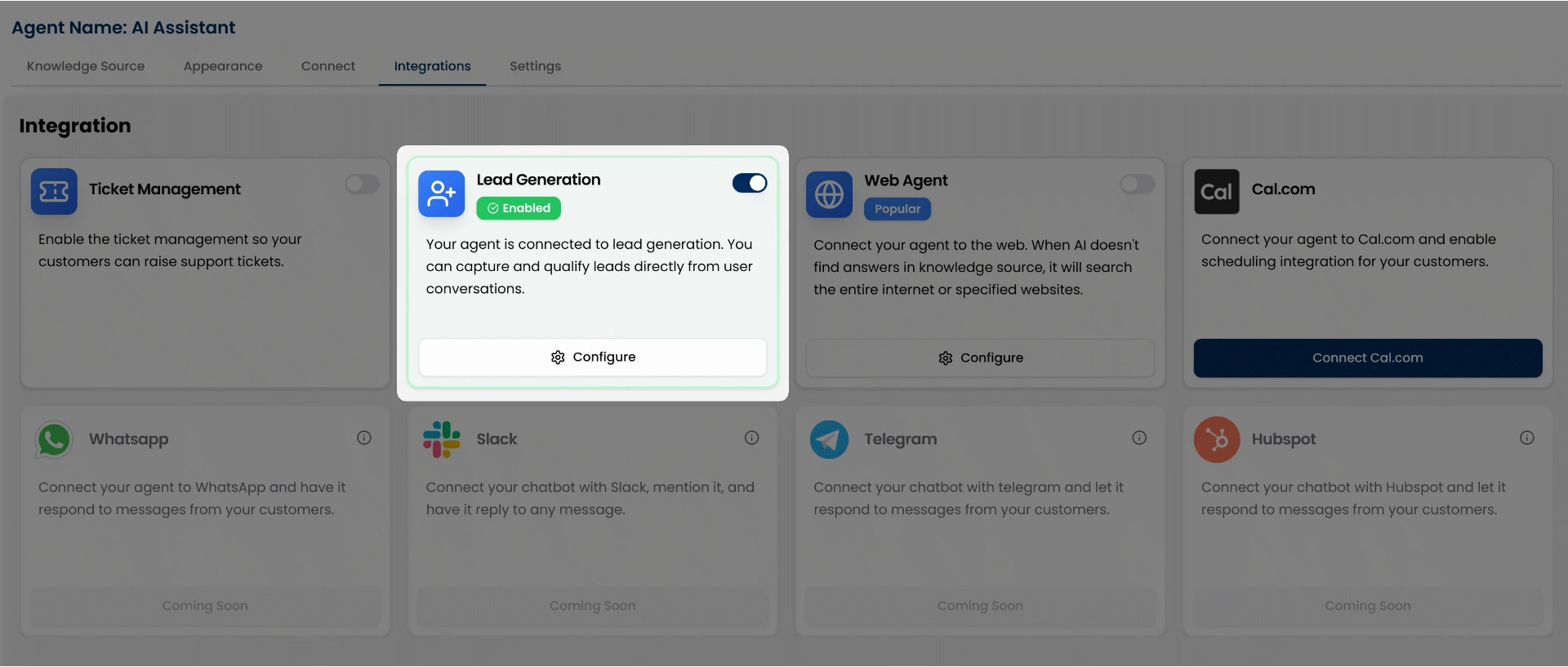
Preview in Chat
Whenever a new visitor opens the chat agent, it automatically prompts a lead capture form like this, directly within the chat:
Accessing & Managing Captured Leads
All leads captured through your chat agent are stored in the Leads section of your myIDFI AI dashboard, accessible from the left sidebar. You can review user details, contacts, and take follow-up actions from there. Additionally, you’ll receive an email notification each time a new lead is submitted through the form.View & Manage Leads
To explore how to manage, track, and view your leads, visit the Leads section of the documentation.